
Mobile apps have become an essential part of our daily lives. From social media and gaming to banking and productivity, we rely heavily on apps for almost everything. However, mobile app problems like crashing, slow performance, login errors, or apps not opening are very common. These issues can be frustrating, especially when you don’t know how to fix them.
The good news is that most mobile app problems can be solved easily without visiting a repair shop or reinstalling your phone’s operating system. In this guide, we will explain how to fix common mobile app problems easily, step by step, in a simple and user-friendly way.
Why Do Mobile Apps Stop Working?
Before fixing the problem, it’s important to understand why mobile apps fail. Some common reasons include:
- Outdated app versions
- Poor internet connection
- Corrupted cache or app data
- Low storage space
- Software bugs after system updates
- Incompatible device or OS version
Knowing the cause helps you choose the right solution faster.
1. App Keeps Crashing – How to Fix It
App crashing is one of the most common mobile app problems.
Easy Solutions:
- Restart your phone: This clears temporary system issues.
- Update the app: Developers fix bugs through updates.
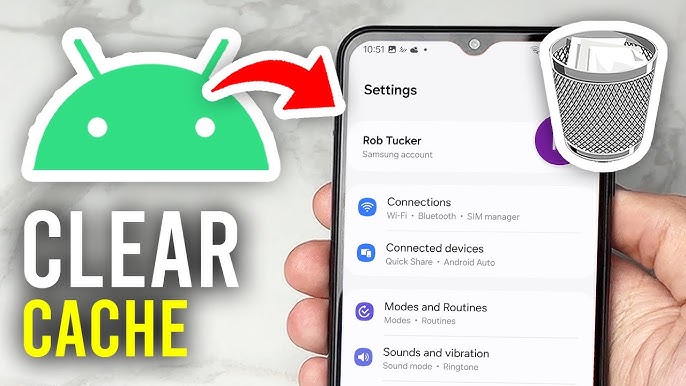
- Clear app cache:
- Go to Settings > Apps > App Name > Storage > Clear Cache
- Reinstall the app if the problem continues.
If an app crashes right after opening, it is often due to corrupted files or an outdated version.
2. App Not Opening or Stuck on Loading Screen
When an app refuses to open or stays stuck on the loading screen, it can be very annoying.
Fix This Problem:
- Check your internet connection
- Turn Airplane Mode ON and OFF
- Force stop the app and reopen it
- Clear cache and app data
- Make sure your device meets the app’s requirements
Sometimes servers are down, so waiting a few minutes also helps.
3. Slow App Performance Issues
Is your app running slower than usual? Lag and freezing are common issues, especially on older devices.
Ways to Speed Up Apps:
- Close unused background apps
- Free up internal storage
- Update your phone software
- Disable battery optimization for that app
- Avoid using heavy apps on low-RAM devices
Apps need free resources to perform smoothly.
4. App Login or Sign-In Problems
Many users face login errors, password issues, or account verification problems.
Easy Fixes:
- Double-check username and password
- Reset your password
- Update the app
- Check date & time settings (set to automatic)
- Clear cache and data
If the issue continues, it may be a server-side issue from the app developer.
5. App Not Installing or Updating
If an app fails to install or update from the Play Store, it’s usually a storage or network issue.
Try These Steps:
- Check available storage space
- Switch Wi-Fi to mobile data or vice versa
- Clear Play Store cache and data
- Restart your phone
- Make sure Google Play Services is updated
Installing apps from trusted sources like APKW8.org can also help avoid corrupted files.
6. App Showing “Unfortunately, App Has Stopped”
This error usually appears due to compatibility or software bugs.
Solutions:
- Update the app and Android OS
- Clear cache partition (advanced users)
- Reinstall the app
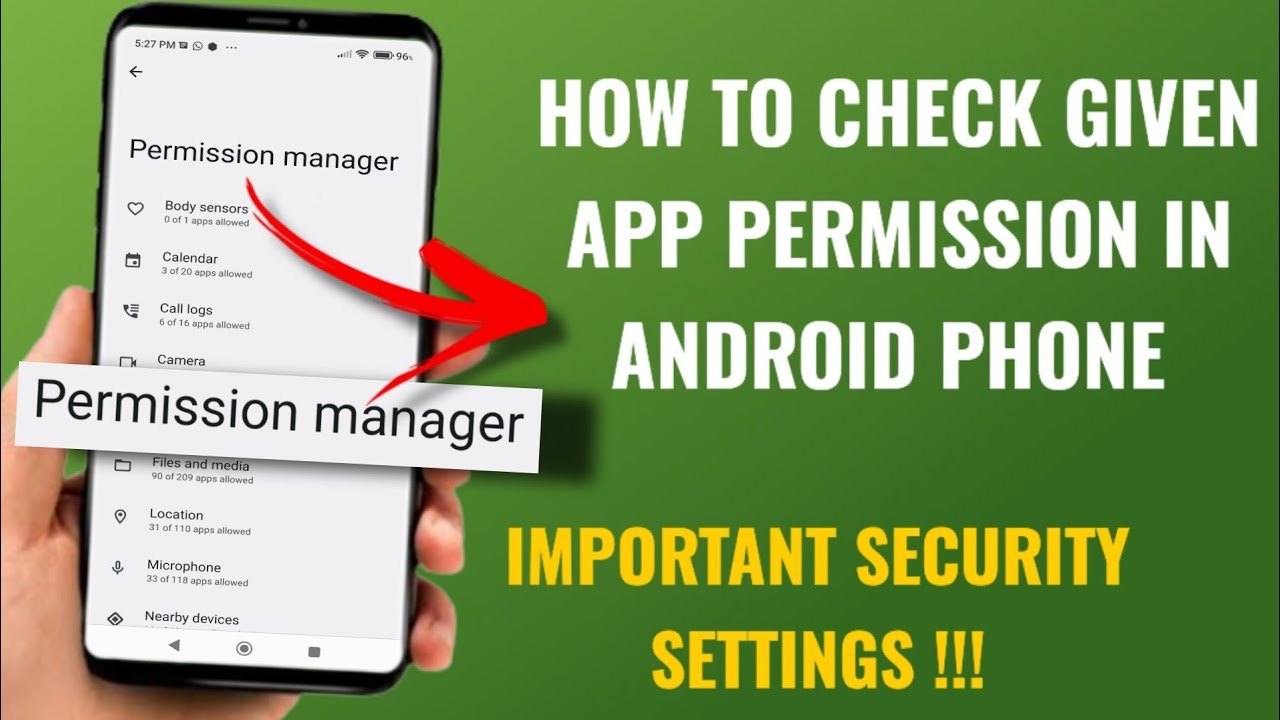
- Check app permissions
Older apps may not work properly on newer Android versions.
7. App Permissions Not Working Properly
Sometimes apps don’t work because required permissions are disabled.
Fix Permissions:
- Go to Settings > Apps > App Name > Permissions
- Allow necessary permissions like storage, camera, or location
- Restart the app
Always grant permissions carefully and only to trusted apps.
8. Battery Drain Due to Apps
Some apps consume too much battery in the background.
Reduce Battery Usage:
- Disable background activity
- Turn off unnecessary notifications
- Update the app
- Use Lite versions of apps
Battery optimization settings can greatly improve phone performance.
9. App Not Compatible with Your Device
This issue occurs when your Android version or hardware doesn’t support the app.
What You Can Do:
- Update your Android OS
- Install an older compatible version
- Use alternative apps with similar features
Always check compatibility before installing apps.
10. When Nothing Works – Final Solutions
If none of the above methods work:
- Restart your phone in safe mode
- Reset app preferences
- Perform a factory reset (last option)
- Contact app support
Always back up your data before major actions.
Tips to Avoid Mobile App Problems in the Future
- Keep apps and OS updated
- Download apps from trusted platforms
- Avoid installing too many apps
- Clear cache regularly
- Maintain enough free storage
Prevention is better than fixing problems later.
Conclusion
Mobile app problems are common, but they are rarely serious. Most issues like app crashing, slow performance, login errors, or installation failures can be fixed easily with simple steps. By following the solutions shared in this guide, you can save time, avoid frustration, and keep your phone running smoothly.
For more helpful guides, app tips, and trusted downloads, keep visiting APKW8.org, your reliable source for mobile app solutions and tech updates.