
Smartphones have become an essential part of our daily lives, but over time even the best devices start to slow down. Many users believe that installing “booster” or “cleaner” apps is the only solution. In reality, you can significantly improve phone performance without installing any apps. By using built-in settings and adopting a few smart habits, you can make your Android phone faster, smoother, and more responsive.
In this guide, apkw8.org explains proven methods to boost phone performance naturally, safely, and effectively.
1. Restart Your Phone Regularly
One of the simplest yet most overlooked ways to improve phone performance is restarting your device.
When your phone stays on for days or weeks:
- Background processes pile up
- RAM gets overloaded
- Temporary system glitches appear
A restart clears memory, stops unnecessary background tasks, and refreshes the system.
Tip: Restart your phone at least once every 2–3 days for optimal performance.
2. Clear Cache (Not Data)
Cached files help apps load faster, but too much cache can slow your phone down.
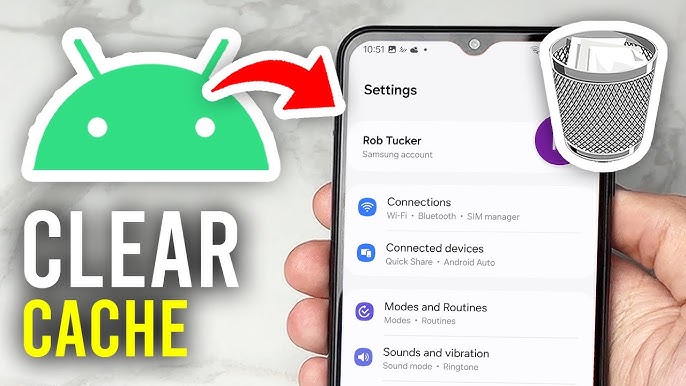
How to Clear Cache:
- Go to Settings
- Open Storage
- Tap Cached Data (or manage app cache individually)
- Clear cache
Clearing cache:
- Frees up storage space
- Fixes lag and app crashes
- Does NOT delete personal data
Avoid clearing app data unless necessary, as it may log you out of apps.
3. Reduce Animations for Faster Speed
Animations look nice, but they consume system resources.
Disable or Reduce Animations:
- Go to Settings > About Phone
- Tap Build Number 7 times to enable Developer Options
- Open Developer Options
- Set:
- Window Animation Scale → 0.5x or Off
- Transition Animation Scale → 0.5x or Off
- Animator Duration Scale → 0.5x or Off
This makes your phone feel instantly faster, especially on older devices.
4. Uninstall or Disable Unused Built-In Apps
Many phones come with pre-installed apps (bloatware) that run in the background.
What You Can Do:
- Uninstall apps you don’t use
- Disable system apps that cannot be removed
Steps:
- Open Settings > Apps
- Select the unwanted app
- Tap Disable (if uninstall is unavailable)
This reduces RAM usage and improves battery and performance.
5. Free Up Internal Storage
Low storage is a major cause of phone lag.
Ways to Free Storage Without Apps:
- Delete old videos and screenshots
- Remove unused APK files
- Clear WhatsApp media manually
- Move photos/videos to cloud or PC
Rule of thumb: Keep at least 20–25% storage free for smooth performance.
6. Turn Off Background Sync You Don’t Need
Many apps constantly sync data in the background, slowing your phone.
Manage Sync Settings:
- Go to Settings > Accounts
- Select an account (Google, email, etc.)
- Disable unnecessary sync options
You can also limit background data for apps you rarely use.
7. Use Lite Versions of System Features
If your phone allows it:
- Use Dark Mode (reduces strain and improves performance on AMOLED screens)
- Turn off Live Wallpapers
- Disable Always-On Display if not needed
Simple visual changes can reduce CPU and GPU load.
8. Update Your Phone Software
Software updates are not just about new features—they often include:
- Performance optimizations
- Bug fixes
- Security improvements
Check for Updates:
- Go to Settings > Software Update
- Download and install the latest version
Always update from official sources to avoid stability issues.
9. Limit Widgets on Home Screen
Widgets continuously refresh data such as weather, news, and clocks.
Too many widgets can:
- Consume RAM
- Drain battery
- Slow down the launcher
Keep only essential widgets and remove the rest for a smoother experience.
10. Reset App Preferences (Safe Option)
If apps behave strangely or slow down the system, resetting app preferences can help.
Steps:
- Go to Settings > Apps
- Tap the three-dot menu
- Select Reset App Preferences
This does not delete apps or data—it only resets defaults and permissions.
11. Use Built-In Device Care Tools
Most modern Android phones include built-in optimization tools like:
- Device Care
- Phone Manager
- Storage Manager
These tools are safe and optimized for your device because they are part of the system.
12. Factory Reset (Last Resort)
If your phone is extremely slow after trying everything, a factory reset can restore performance.
Before Reset:
- Back up important data
- Sync contacts and photos
After Reset:
- Install only necessary apps
- Avoid restoring old junk files
A fresh system often feels like a new phone.
Final Thoughts
Improving phone performance doesn’t require installing risky cleaner or booster apps. By using your phone’s built-in settings and making smart adjustments, you can enjoy faster speed, better battery life, and smoother performance.
At apkw8.org, we believe in helping users get the best experience from their devices—whether through apps, mods, or simple optimization tips like these.
If you want more Android tips, APK guides, and performance hacks, keep visiting apkw8.org for trusted and updated content.