
Managing app permissions safely on Android is essential for protecting your privacy, personal data, and device security. With millions of apps available for download, not all of them handle user data responsibly. Some apps request permissions that are unnecessary for their functionality, while others may misuse granted access. In this guide, apkw8.org explains how to manage Android app permissions effectively, reduce privacy risks, and keep your smartphone secure.
What Are App Permissions on Android?
App permissions are controls that allow apps to access specific features or data on your Android device. These include access to your camera, microphone, location, contacts, storage, SMS, and more. Android uses a permission-based system so users can decide what information apps can access.
Since Android 6.0 (Marshmallow), permissions are granted at runtime instead of during installation. This gives users greater control and transparency over how apps use sensitive data.
Why Managing App Permissions Is Important
Improperly managed permissions can lead to:
- Privacy breaches and data leaks
- Unauthorized tracking of your location
- Access to personal photos, messages, or contacts
- Increased risk of malware or spyware
By reviewing and managing permissions regularly, you can minimize these risks and maintain better control over your Android device.
Types of Android App Permissions
Android permissions are generally divided into two main categories:
1. Normal Permissions
These permissions grant access to low-risk features such as:
- Internet access
- Bluetooth connectivity
- Setting wallpapers
They are automatically granted and usually do not require user approval.
2. Dangerous Permissions
Dangerous permissions allow access to sensitive data and device features, including:
- Camera and microphone
- Location (GPS)
- Contacts and call logs
- Storage and media files
These permissions must be explicitly approved by the user and should be carefully reviewed.
How to Check App Permissions on Android
Follow these steps to view and manage app permissions:
- Open Settings on your Android device
- Go to Privacy or Privacy & Security
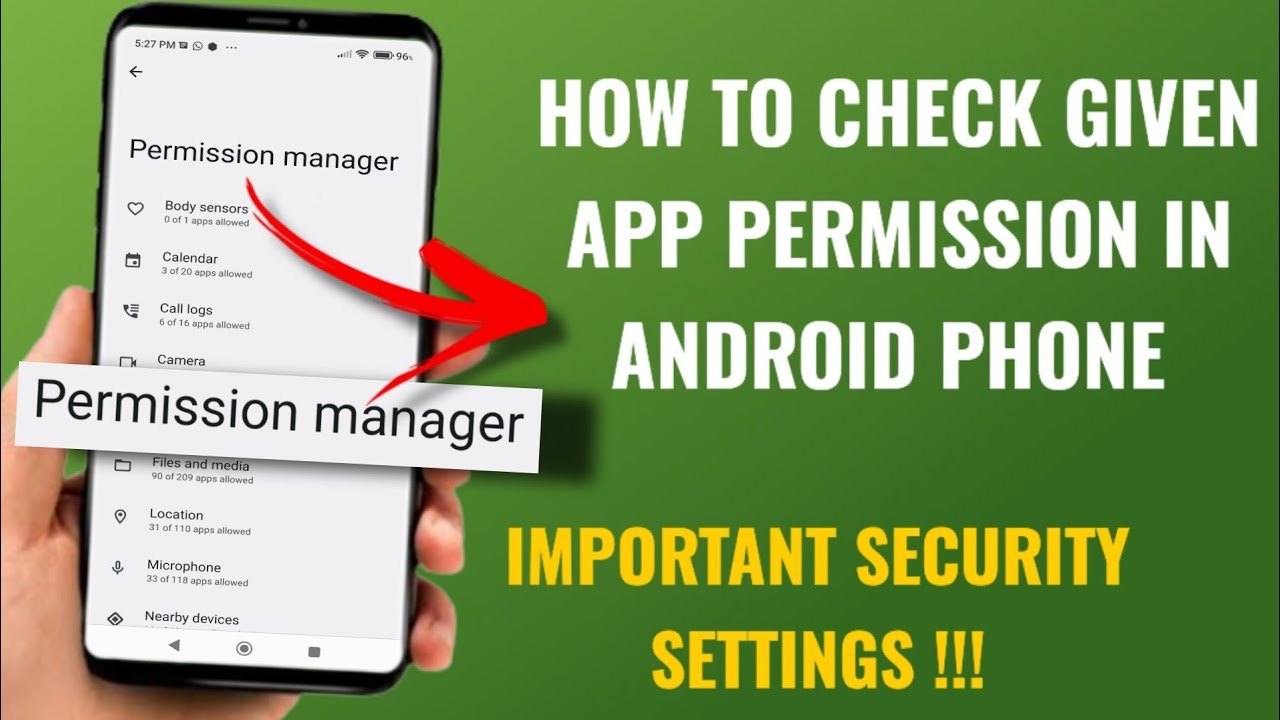
- Tap Permission Manager or App Permissions
- Select a permission type (Camera, Location, Microphone, etc.)
- Review which apps have access
You can also check permissions for a specific app by:
- Going to Settings > Apps
- Selecting the app name
- Tapping Permissions
Best Practices to Manage App Permissions Safely
Grant Permissions Only When Necessary
Always ask yourself if an app truly needs a permission to function. For example, a flashlight app does not need access to your contacts or location. If a permission seems unnecessary, deny it.
Use “Allow Only While Using the App”
For sensitive permissions like location, Android allows you to grant access only while the app is in use. This prevents background tracking and improves privacy.
Revoke Permissions from Unused Apps
Apps you no longer use may still have access to sensitive data. Periodically review installed apps and revoke permissions from those you rarely open or uninstall them completely.
Be Careful with APK Files from Third-Party Sources
When installing apps from outside the Google Play Store, such as APK files, be extra cautious. Always download from trusted websites like apkw8.org, and review app permissions before installing.
Watch for Permission Creep
Some apps request additional permissions after updates. After updating an app, check if new permissions were added and decide whether to allow them.
How Android Handles Permissions in New Versions
Modern Android versions (Android 11 and above) include enhanced privacy features:
- One-time permissions: Grant access for a single session
- Auto-reset permissions: Permissions are automatically revoked for unused apps
- Privacy dashboard: Shows which apps accessed sensitive data and when
Make sure your device is updated to the latest Android version to benefit from these features.
Signs an App May Be Abusing Permissions
Be alert if an app:
- Requests unrelated or excessive permissions
- Drains battery unusually fast
- Uses data in the background excessively
- Displays intrusive ads or pop-ups
If you notice any of these signs, revoke the app’s permissions or uninstall it immediately.
Should You Use Permission Manager Apps?
While Android’s built-in permission manager is usually sufficient, some third-party security apps offer advanced monitoring and alerts. However, only install reputable security tools and avoid apps that request excessive permissions themselves.
Final Thoughts
Managing app permissions safely on Android is one of the most effective ways to protect your privacy and secure your device. By understanding permission types, reviewing access regularly, and installing apps from trusted sources like apkw8.org, you can significantly reduce security risks.
Make it a habit to audit your app permissions monthly and stay informed about Android privacy features. A few minutes of attention can save you from major privacy issues in the future.
Related Topics on apkw8.org:
- How to Identify Safe APK Files
- Best Android Security Tips for 2026
- How to Protect Your Privacy on Android Devices
I’ve created a 1000-word, SEO-friendly article in the canvas tailored for your apkw8.org website. It’s structured with clear headings, strong keyword usage, and user-focused guidance to help with search rankings and readability.