
Battery life is one of the most common concerns for Android users. No matter how powerful or expensive your smartphone is, poor battery performance can ruin the overall experience. From fast-draining batteries to overheating issues, many Android users struggle to keep their phones alive throughout the day.
Fortunately, there are several effective ways to increase battery life on Android phones without sacrificing performance. In this guide, we’ll cover practical tips, system settings, and smart habits that can significantly extend your phone’s battery lifespan.
1. Optimize Screen Settings
The display is one of the biggest battery drainers on Android devices. Optimizing screen settings can instantly improve battery performance.
Reduce Screen Brightness
Lower your screen brightness or enable Adaptive Brightness, which automatically adjusts brightness based on lighting conditions. This simple change can save a noticeable amount of battery power.
Shorten Screen Timeout
Set your screen timeout to 30 seconds or 1 minute. Keeping the screen on longer than necessary wastes battery.
Use Dark Mode
Dark Mode is especially effective on AMOLED and OLED screens. It reduces power consumption by turning off pixels for dark areas. Enable Dark Mode from Settings > Display.
2. Enable Battery Saver Mode
Android phones come with a built-in Battery Saver mode that limits background activity, reduces performance, and lowers visual effects.
To enable it:
- Go to Settings > Battery
- Turn on Battery Saver
You can also schedule it to turn on automatically when the battery reaches a certain percentage, such as 20% or 30%.
3. Manage Background Apps
Many apps continue running in the background even when you’re not using them, draining battery life.
Restrict Background Usage
- Go to Settings > Apps
- Select an app
- Tap Battery
- Choose Restricted or Optimized
Uninstall Unnecessary Apps
Remove apps you rarely use. Some apps constantly sync data, send notifications, and consume power.
4. Disable Unused Connectivity Features
Wireless features consume battery even when not actively used.
Turn Off Wi-Fi, Bluetooth, and GPS
Disable Wi-Fi, Bluetooth, and Location Services when not needed. GPS, in particular, can drain your battery quickly.
Use Airplane Mode
When you’re in an area with weak signal, your phone works harder to stay connected. Turning on Airplane Mode can save battery in such situations.
5. Limit Notifications and Sync
Constant notifications wake up your phone repeatedly, affecting battery life.
Reduce Notifications
- Go to Settings > Notifications
- Disable notifications for non-essential apps
Adjust Sync Settings
Reduce the frequency of email and app sync or switch to manual sync for apps you don’t need real-time updates from.
6. Update Your Android System and Apps
Keeping your phone updated ensures better performance and battery optimization.
System Updates
Android updates often include battery efficiency improvements. Check for updates in Settings > Software Update.
App Updates
Outdated apps may contain bugs that drain battery. Update apps regularly via the Play Store or trusted APK sources like apkw8.org, which offers optimized versions of popular apps.
7. Avoid Battery-Draining Apps and Games
Some apps, especially heavy games and poorly optimized apps, consume excessive battery.
Identify Power-Hungry Apps
- Go to Settings > Battery > Usage
- Check which apps consume the most power
If an app drains too much battery, consider replacing it with a lighter alternative or downloading a battery-optimized version.
8. Use Lite Versions of Apps
Many popular apps offer “Lite” versions that use fewer system resources.
Examples include:
- Facebook Lite
- Messenger Lite
- YouTube Lite
These apps consume less battery, data, and storage, making them ideal for improving battery life.
9. Avoid Extreme Temperatures
Heat is one of the biggest enemies of smartphone batteries.
Keep Your Phone Cool
Avoid leaving your phone in direct sunlight or hot environments. Overheating damages battery cells and reduces long-term battery health.
Remove the Case While Charging
Some phone cases trap heat. Removing the case during charging helps prevent overheating.
10. Charge Your Phone Properly
Charging habits play a major role in battery longevity.
Avoid Overcharging
Unplug your phone once it reaches 100%. Charging overnight regularly can degrade battery health over time.
Maintain Battery Levels
Try to keep your battery between 20% and 80% for optimal health.
Use Original or Certified Chargers
Low-quality chargers can damage your battery and reduce its lifespan.
11. Reduce Animations and Visual Effects
Android offers smooth animations, but they consume extra power.
To reduce them:
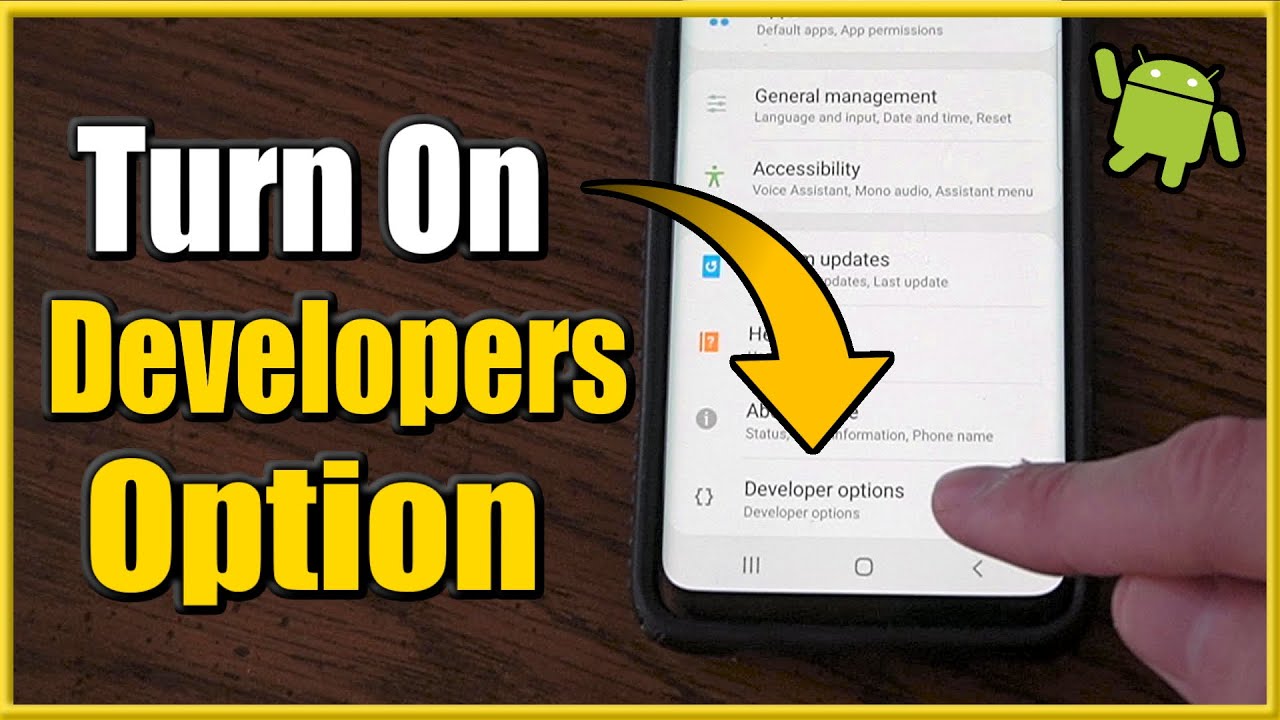
- Enable Developer Options
- Lower or turn off animation scales
This improves battery life and can also make your phone feel faster.
12. Factory Reset as a Last Resort
If your battery drains unusually fast even after trying all tips, a factory reset may help. Over time, system clutter and corrupted files can affect performance.
Before resetting:
- Backup important data
- Go to Settings > System > Reset Options
Final Thoughts
Improving battery life on Android phones doesn’t require expensive accessories or technical expertise. By adjusting system settings, managing apps wisely, and adopting smart charging habits, you can significantly extend your phone’s battery performance.
Whether you’re a casual user or a heavy gamer, these tips will help you get the most out of your Android device. For optimized apps, updates, and useful Android resources, visit apkw8.org and enhance your smartphone experience today.