
Managing storage on Android phones is a common challenge for many users. Over time, apps, photos, videos, cached files, and system data can fill up your device’s internal storage, leading to slow performance, app crashes, and limited space for new content. If you want your Android phone to run smoothly, learning how to manage storage effectively is essential.
In this SEO-friendly guide for apkw8.org, we’ll explain practical and proven ways to manage storage on Android phones, free up space, and keep your device optimized for long-term use.
Why Storage Management Is Important on Android
Android phones rely heavily on internal storage for apps, updates, and system processes. When storage becomes full:
- Phone performance slows down
- Apps may fail to update or install
- Camera stops saving photos or videos
- System updates cannot be installed
Regular storage management ensures better speed, stability, and overall user experience.
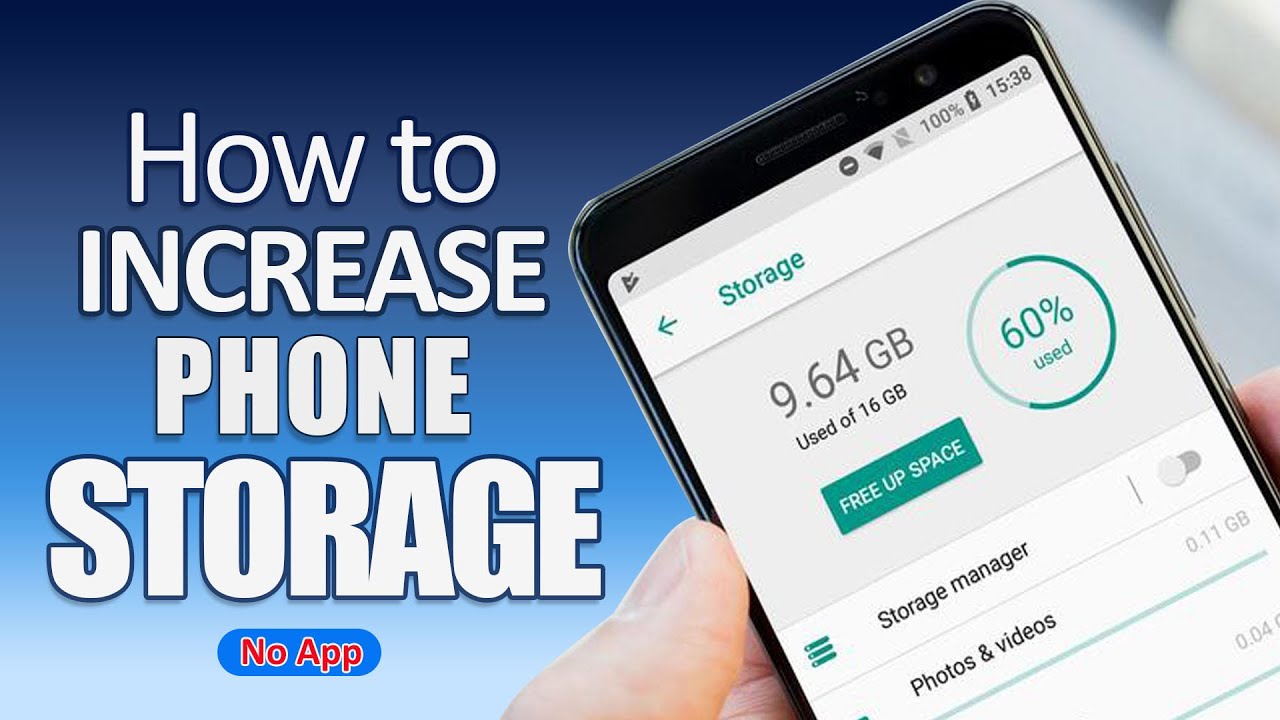
Check Storage Usage on Your Android Phone
The first step in managing storage is understanding what’s using it.
How to Check Storage:
- Open Settings
- Tap Storage or Battery & Device Care
- Review categories like Apps, Images, Videos, Audio, and System
This breakdown helps you identify which files or apps are consuming the most space.
Delete Unnecessary Apps
Unused apps are one of the biggest storage hogs on Android devices.
Tips to Remove Unused Apps:
- Uninstall apps you no longer use
- Remove pre-installed bloatware (if allowed)
- Replace heavy apps with lighter alternatives
To uninstall an app, long-press the app icon and tap Uninstall, or go to Settings > Apps.
Clear App Cache and Data
Cached data helps apps load faster, but over time it can consume large amounts of storage.
How to Clear App Cache:
- Go to Settings > Apps
- Select an app
- Tap Storage
- Choose Clear Cache
Avoid clearing app data unless necessary, as it may reset app settings or log you out.
Manage Photos and Videos Efficiently
Media files are often the largest storage consumers.
Best Practices:
- Delete duplicate or blurry photos
- Remove unnecessary screenshots
- Transfer files to a PC or external drive
- Use cloud storage services
Use Google Photos:
Enable Backup & Sync and use the Free up space feature to remove backed-up media from your phone.
Use an SD Card (If Supported)
Some Android phones support expandable storage via microSD cards.
Benefits of Using an SD Card:
- Store photos, videos, and music externally
- Reduce internal storage usage
- Improve device performance
You can move supported apps and files to the SD card via Settings > Storage.
Download Files Wisely
APK files, PDFs, ZIP files, and media downloads can pile up quickly.
Tips:
- Regularly check the Downloads folder
- Delete outdated APKs after installation
- Avoid downloading duplicate files
Using a file manager app can help locate large or forgotten files easily.
Use Lite Versions of Apps
Many popular apps offer lite versions that consume less storage and data.
Examples:
- Facebook Lite
- Messenger Lite
- YouTube Lite
- Google Go
These apps are ideal for devices with limited storage and offer essential features with minimal space usage.
Enable Smart Storage Features
Modern Android versions include built-in storage optimization tools.
Smart Storage Features:
- Automatically remove backed-up photos
- Suggest unused apps for removal
- Clean temporary files
Enable this option in Settings > Storage > Smart Storage (availability may vary by device).
Use Cloud Storage Services
Cloud storage helps reduce dependency on internal storage.
Popular Cloud Storage Options:
- Google Drive
- Dropbox
- OneDrive
Store documents, videos, and backups online and access them whenever needed.
Keep Your Android System Updated
System updates often include performance and storage optimization improvements.
Why Updates Matter:
- Better storage management
- Improved app compatibility
- Enhanced security
Ensure you have enough free space before installing updates.
Avoid Storage Cleaner Apps from Unknown Sources
Some third-party cleaner apps claim to free up storage but may contain ads or malware.
Safe Alternatives:
- Built-in Android storage cleaner
- Trusted apps from the Google Play Store
Always check app reviews and permissions before installation.
Factory Reset as a Last Resort
If your phone is extremely slow or storage is constantly full, a factory reset may help.
Before Resetting:
- Backup all important data
- Remove Google account
- Ensure battery is charged
A factory reset removes all data and restores your phone to its original state.
Final Thoughts
Managing storage on Android phones doesn’t have to be complicated. By regularly checking storage usage, deleting unnecessary apps, clearing cache, managing media files, and using cloud storage, you can keep your device running smoothly and efficiently.
At apkw8.org, we aim to provide useful Android tips, app guides, and optimization solutions to enhance your mobile experience. Bookmark our website for more Android tutorials, APK insights, and performance tips.
With proper storage management, your Android phone will stay fast, responsive, and ready for everyday use.
I’ve written a 1000-word, SEO-friendly article tailored for your apkw8.org website and placed it in the canvas so you can easily edit, copy, or publish it.