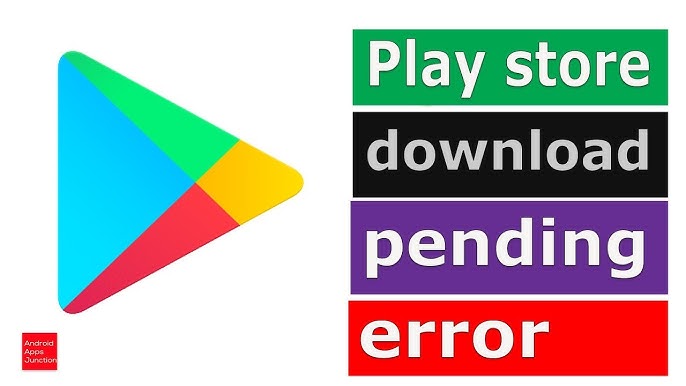

The Google Play Store is the primary source for downloading apps, games, movies, and updates on Android devices. However, many users face frustrating issues when apps fail to download, get stuck on “Pending,” or show error messages. If you are struggling with Play Store download problems, this guide will help you understand the causes and provide step-by-step solutions.
At apkw8.org, we regularly help Android users fix common app installation issues and find reliable APK alternatives when needed. Let’s dive into the most effective ways to solve Play Store download problems.
Common Reasons Why Play Store Downloads Fail
Before applying fixes, it’s important to know what causes Play Store download errors. The most common reasons include:
- Poor or unstable internet connection
- Corrupted cache or data in Play Store
- Google account sync issues
- Insufficient storage space
- Outdated Google Play Services
- Android system bugs
- Incorrect date and time settings
Identifying the cause will make troubleshooting easier.
1. Check Your Internet Connection
A weak or unstable internet connection is the most common reason for download problems.
What to do:
- Switch between Wi-Fi and mobile data
- Restart your router
- Turn Airplane Mode ON for 30 seconds, then turn it OFF
- Avoid public Wi-Fi networks that block Google services
Make sure your internet speed is stable before retrying the download.
2. Restart Your Android Device
A simple restart can fix many temporary system glitches that affect Play Store downloads.
Steps:
- Press and hold the Power button
- Tap Restart
- After reboot, open Play Store and try again
This clears background processes that may be blocking downloads.
3. Clear Google Play Store Cache and Data
Corrupted cache files often cause Play Store errors like “Download Pending” or “Something Went Wrong.”
Steps:
- Go to Settings > Apps > Google Play Store
- Tap Storage
- Select Clear Cache
- Tap Clear Data
- Restart your phone
Repeat the same steps for:
- Google Play Services
- Google Services Framework
4. Check Available Storage Space
If your device storage is full, Play Store cannot download or install apps.
How to fix:
- Go to Settings > Storage
- Delete unused apps, videos, or files
- Clear app caches
- Move media to cloud or SD card
You should keep at least 1–2 GB of free space for smooth app installations.
5. Fix “Download Pending” Error
This error usually occurs when multiple apps are updating simultaneously.
Solutions:
- Open Play Store
- Tap your Profile Icon > Manage apps & device
- Pause all downloads
- Download apps one by one
Also, disable automatic app updates:
- Play Store > Settings > Network Preferences > Auto-update apps > Don’t auto-update
6. Update Google Play Services
Google Play Services is essential for app downloads and installations.
Steps:
- Go to Settings > Apps > Google Play Services
- Scroll down and tap App Details
- Update it from Play Store
An outdated version can cause frequent Play Store download errors.
7. Check Date and Time Settings
Incorrect date and time can interfere with Google servers.
Fix:
- Go to Settings > Date & Time
- Enable Automatic Date & Time
- Enable Automatic Time Zone
Restart your phone and retry the download.
8. Remove and Re-Add Your Google Account
Account sync problems can prevent downloads.
Steps:
- Go to Settings > Accounts > Google
- Select your account
- Tap Remove Account
- Restart your device
- Add your Google account again
This refreshes your Google services connection.
9. Update Android System
An outdated Android version may cause Play Store compatibility issues.
Steps:
- Go to Settings > Software Update
- Download and install the latest update (if available)
System updates often include bug fixes that improve Play Store performance.
10. Try Safe Mode
Third-party apps can interfere with Play Store downloads.
How to enable Safe Mode:
- Press and hold the Power button
- Tap and hold Power Off
- Select Safe Mode
If downloads work in Safe Mode, uninstall recently installed apps after exiting Safe Mode.
11. Use Trusted APK Alternatives (If Needed)
If Play Store continues to fail, you can download apps manually from trusted APK websites.
At apkw8.org, we provide:
- Safe and verified APK files
- Latest app versions
- MOD APKs and original APKs
- Easy installation guides
⚠️ Always enable “Install Unknown Apps” only from trusted sources and disable it afterward for security.
Common Play Store Error Codes and Fixes
| Error Code | Solution |
|---|---|
| Error 403 | Clear cache & re-add Google account |
| Error 495 | Clear Play Store & Play Services data |
| Error 927 | Wait for Play Store update to finish |
| Error 963 | Clear cache or uninstall Play Store updates |
| Error DF-DLA-15 | Clear Google Services Framework data |
Final Thoughts
Play Store download problems can be annoying, but most issues are easy to fix with the right steps. From clearing cache and checking internet connection to updating Google Play Services, these solutions cover almost every common scenario.
If none of the methods work, using reliable APK sources like apkw8.org can help you download apps safely without relying on Play Store.
Bookmark this guide and share it with others who face Play Store download errors. For more Android tips, APK downloads, and troubleshooting guides, stay connected with apkw8.org