
Running out of storage space on your smartphone can be extremely frustrating. You try to install a new app, update your system, or capture photos—only to see the warning “Storage Almost Full.” This issue affects almost every smartphone user, whether you’re using Android or iPhone.
In this complete guide, you’ll learn how to free up storage space on any smartphone using simple, safe, and effective methods. These tips work on Android, iPhone, budget phones, and flagship devices alike.
Why Smartphone Storage Gets Full Quickly
Before freeing up space, it’s important to understand what consumes storage:
- Unused apps
- Large games
- Cached data
- Duplicate photos & videos
- WhatsApp and social media media files
- System junk files
- Downloaded documents
- App update leftovers
Even phones with 128GB or 256GB storage can fill up faster than expected.
1. Check Storage Usage First (Most Important Step)
On Android:
- Go to Settings
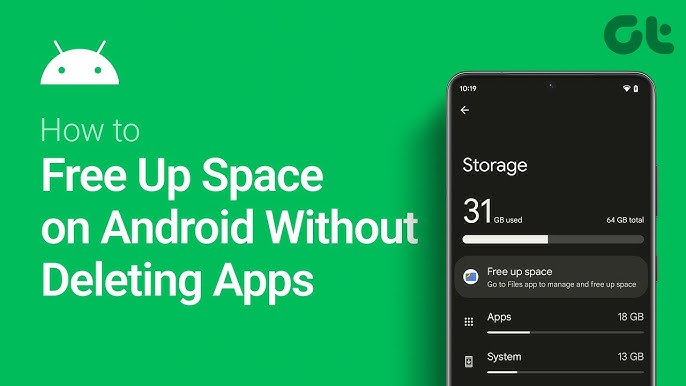
- Tap Storage
- View which categories use the most space
On iPhone:
- Open Settings
- Go to General > iPhone Storage
- Wait for the storage breakdown
This helps you identify what to delete first instead of guessing.
2. Delete Unused Apps & Games
Many users install apps “just to try” and forget about them.
Tips:
- Remove apps you haven’t used in 30–60 days
- Large games often use 2–10GB
- Streaming apps store offline data silently
Android Tip:
Settings > Apps > Sort by Size
iPhone Tip:
Enable Offload Unused Apps (keeps data but removes app)
3. Clear App Cache & Junk Files (Android Users)
Cache files can consume several GBs over time.
Clear Cache:
- Settings > Apps
- Select an app
- Tap Clear Cache
Best Junk Cleaner Apps:
- Files by Google
- SD Maid (Android)
- CCleaner
⚠️ Avoid fake cleaner apps that show ads or request unnecessary permissions.
4. Clean WhatsApp, Messenger & Telegram Storage
Messaging apps are storage killers, especially WhatsApp.
WhatsApp Cleanup:
- Open WhatsApp
- Settings > Storage and Data
- Manage Storage
- Delete large videos and forwarded files
Pro Tip:
- Disable auto-download media
- Delete old group media
- Clear status videos regularly
5. Delete Duplicate & Blurry Photos
Photos and videos usually take 40–60% of phone storage.
What to Remove:
- Duplicate photos
- Screenshots
- Blurry images
- Old memes & downloads
- Screen recordings
Useful Apps:
- Google Photos (Free cleanup tool)
- Files by Google
- Gemini Photos (iPhone)
6. Backup Photos & Videos to Cloud Storage
After deleting files, backup important data safely.
Best Cloud Options:
- Google Photos (Android & iPhone)
- iCloud (iPhone)
- Google Drive
- Dropbox
Once backed up, delete local copies to free massive space.
7. Move Files to SD Card or External Storage (Android)
If your phone supports it:
- Insert an SD card
- Move photos, videos, and documents
You can also use:
- USB OTG
- External flash drives
This is a low-cost storage solution for Android users.
8. Clear Downloads Folder & Old Documents
Most people forget the Downloads folder.
Check For:
- PDFs
- APK files
- ZIP files
- Old images
- App installers
Deleting these files can instantly free hundreds of MBs or even GBs.
9. Remove Offline Content from Apps
Many apps store offline content silently.
Common Examples:
- Spotify & YouTube downloads
- Netflix movies
- Google Maps offline areas
- Learning apps videos
Open each app and delete unused offline files.
10. Update Apps & System Software
Old versions may contain bugs and junk files.
- Update apps regularly
- Install system updates
- Restart phone after updates
This improves storage management and performance.
11. Reset App Preferences (Advanced Users)
Sometimes apps misbehave and store excess data.
On Android:
Settings > Apps > Reset App Preferences
⚠️ This won’t delete data but resets permissions.
12. Factory Reset (Last Option Only)
If your phone is extremely slow and storage is always full:
Before Reset:
- Backup everything
- Sync contacts
- Save passwords
Factory reset gives you a fresh start and maximum free storage.
Best Storage Saving Habits (Long-Term Tips)
- Delete screenshots weekly
- Avoid installing unnecessary apps
- Use cloud storage
- Clear cache monthly
- Disable auto-downloads
- Compress videos before saving
Final Thoughts
Running out of storage space doesn’t mean you need a new phone. By following the steps in this guide, you can free up several GBs of storage on any smartphone—Android or iPhone.
Regular maintenance keeps your device:
- Faster
- Smoother
- Error-free
- Ready for updates
If you found this guide helpful, explore more tech tips, APK reviews, and smartphone guides on apkw8.org.