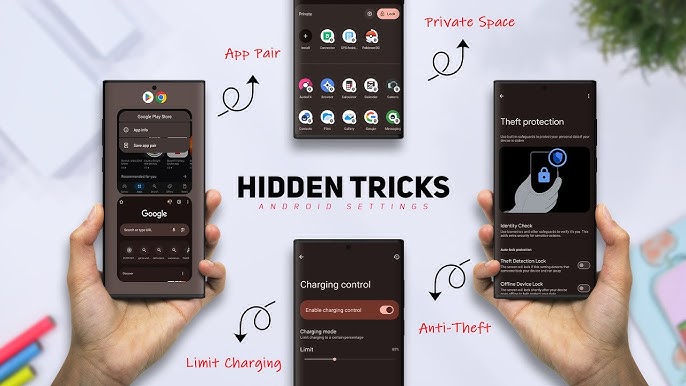

Android smartphones are powerful, flexible, and highly customizable—but most users never unlock their full potential. While manufacturers focus on flashy features, many hidden Android settings quietly impact performance, speed, and battery life.
If your Android phone feels slow, lags while multitasking, or drains battery too fast, you don’t always need to install a cleaner app or buy a new device. Instead, adjusting hidden Android system settings can dramatically improve performance—especially on low-end and mid-range phones.
In this in-depth guide by apkw8.org, we’ll explore the best hidden Android settings that can boost speed, reduce lag, improve battery life, and optimize overall performance—all without rooting your phone.
Why Android Performance Slows Down Over Time
Before diving into hidden settings, it’s important to understand why Android phones slow down:
- Background apps consuming RAM
- Heavy animations and visual effects
- Poor battery optimization
- System apps running unnecessarily
- Unoptimized network and data settings
- Cache accumulation
Thankfully, Android provides built-in options to control all these issues—you just need to know where to look.
1. Enable Developer Options (The Gateway to Performance Tweaks)
Many powerful Android performance settings are hidden inside Developer Options.
How to Enable Developer Options
- Open Settings
- Go to About Phone
- Tap Build Number 7 times
- Enter your PIN or password
- You’ll see “You are now a developer”
Now go back to Settings > Developer Options
2. Reduce or Disable Animations (Instant Speed Boost)
Android animations look smooth but consume CPU and GPU resources.
Best Animation Settings
Inside Developer Options, find:
- Window animation scale
- Transition animation scale
- Animator duration scale
Recommended Values
- Set all three to 0.5x or Animation off
Benefits
- Faster app opening
- Smoother navigation
- Reduced lag on low-end devices
💡 Pro Tip: This single tweak alone can make your phone feel twice as fast.
3. Force GPU Rendering for Better UI Performance
Some apps rely on CPU instead of GPU for rendering.
How to Enable
- Go to Developer Options
- Turn on Force GPU rendering
Benefits
- Smoother graphics
- Better scrolling
- Improved performance in UI-heavy apps
⚠️ Note: This may slightly increase battery usage, but performance gain is noticeable.
4. Limit Background Processes to Save RAM
Too many background apps can slow down your phone.
How to Adjust
- Open Developer Options
- Tap Background process limit
- Set it to At most 3 or 4 processes
Benefits
- More free RAM
- Faster multitasking
- Reduced overheating
📱 Ideal for phones with 2GB–4GB RAM
5. Disable Unnecessary System Apps (Bloatware Control)
Manufacturers pre-install apps that run silently in the background.
Steps
- Go to Settings > Apps
- Select unused system apps
- Tap Disable
Examples:
- Manufacturer app stores
- Built-in games
- Duplicate browser or music apps
Benefits
- Reduced RAM usage
- Better battery life
- Faster system response
⚠️ Avoid disabling core services like Google Play Services.
6. Enable Data Saver Mode for Faster Network Performance
Background data usage can slow down your phone and drain battery.
How to Enable
- Go to Settings > Network & Internet
- Tap Data Saver
- Turn it ON
Benefits
- Faster browsing
- Reduced background activity
- Better battery efficiency
7. Use Adaptive Battery to Extend Battery Life
Android’s Adaptive Battery feature uses AI to limit background apps.
How to Enable
- Go to Settings > Battery
- Turn on Adaptive Battery
Benefits
- Improved battery lifespan
- Less background CPU usage
- Better long-term performance
🔋 Especially helpful for users who keep many apps installed.
8. Clear App Cache (Without Data Loss)
Cached files accumulate over time and slow apps down.
How to Clear Cache
- Go to Settings > Storage
- Open Apps
- Select an app
- Tap Clear Cache
Benefits
- Faster app launch
- Reduced storage usage
- Fewer app crashes
🧹 Tip: Clear cache monthly for best results.
9. Turn Off Auto-Sync for Unnecessary Accounts
Constant syncing wastes CPU cycles and battery.
How to Manage Sync
- Go to Settings > Accounts
- Select an account
- Disable unnecessary sync options
Benefits
- Reduced background activity
- Improved battery and speed
- Better overall system stability
10. Enable Lite Mode or Performance Mode (If Available)
Many Android phones include hidden performance profiles.
Examples
- Samsung: Enhanced Processing
- Xiaomi: Performance Mode
- Realme/Oppo: High Performance Mode
Benefits
- Higher CPU performance
- Faster app loading
- Better gaming experience
⚠️ Battery consumption may increase.
11. Reduce Background Location Access
Location services continuously run in the background.
Steps
- Go to Settings > Location
- Set apps to Allow only while using
- Disable location access for unnecessary apps
Benefits
- Better battery life
- Reduced system load
- Improved privacy
12. Disable Live Wallpapers and Widgets
Live wallpapers and widgets consume memory.
Recommendations
- Use static wallpapers
- Remove unused widgets
- Avoid animated lock screens
Benefits
- Lower RAM usage
- Faster home screen loading
- Improved UI responsiveness
13. Keep Android System Updated
System updates often include performance improvements and bug fixes.
Check for Updates
- Go to Settings > Software Update
- Download and install updates
🔐 Updates also improve security and stability.
14. Restart Your Phone Weekly (Simple but Effective)
Restarting clears temporary memory and refreshes system processes.
Benefits
- Improved speed
- Fewer background errors
- Stable performance
📅 Make it a habit to restart once a week.
15. Use Lite Versions of Apps
Heavy apps slow down low-end phones.
Best Lite Apps
- Facebook Lite
- Messenger Lite
- YouTube Lite
- Google Go
Benefits
- Faster performance
- Less RAM usage
- Lower battery consumption
Common Myths About Android Performance
❌ Task killer apps improve speed
❌ RAM cleaner apps boost performance
❌ Frequent factory resets are necessary
✅ Built-in Android settings are safer and more effective
Final Thoughts: Unlock Your Android’s True Power
Most Android users never explore the settings that truly matter. By adjusting these hidden Android settings, you can:
- Improve speed and responsiveness
- Extend battery life
- Reduce lag and overheating
- Enhance overall phone performance
Best of all, these tweaks are safe, free, and don’t require rooting.
At apkw8.org, we believe smart optimization beats unnecessary apps. Try these settings today and experience the difference.
Recommended Reads on apkw8.org
- Best Lightweight Android Apps for Low-End Phones
- How to Improve Android Battery Life Without Apps
- Hidden Android Features You Should Enable Today