
Android phones are known for their flexibility and customization. Most users know how to change wallpapers, ringtones, or themes, but Android hides many powerful app customization options deep inside system settings, developer tools, and app-specific menus. These hidden features can dramatically improve your phone’s performance, privacy, battery life, and overall user experience.
In this detailed guide, we’ll uncover hidden app customization options in Android phones that most users never explore. Whether you’re using Samsung, Xiaomi, OnePlus, Oppo, Vivo, or stock Android, these tips will help you unlock the true power of your device.
Why Android App Customization Matters
Before diving into hidden features, it’s important to understand why app customization is so valuable:
- ✔ Better performance and speed
- ✔ Improved battery life
- ✔ More privacy and security
- ✔ Personalized app behavior
- ✔ Reduced background activity
Android allows you to control how each app behaves, not just how it looks.
1. App-Specific Permission Controls (Beyond Basics)
Most users allow permissions once and forget about them. Android actually offers advanced permission customization per app.
Hidden Options You Can Control:
- Allow permission only while app is in use
- Deny access to background location
- Revoke unused permissions automatically
- Block microphone or camera access silently
📌 How to access:
Settings → Privacy → Permission Manager → Select an app
💡 Tip: Apps that haven’t been used for months can automatically lose permissions in newer Android versions.
2. Hidden Background Activity Restrictions
Many apps keep running in the background, draining battery and data—even when you’re not using them.
What You Can Customize:
- Background data usage
- Background battery consumption
- App launch behavior
- Auto-start permissions
📌 Steps:
Settings → Apps → Select App → Battery → Restrict / Limit Background Use
🚀 This single setting can significantly improve battery life.
3. Disable Unwanted App Notifications (Advanced Level)
Android notification control is deeper than just “on or off.”
Hidden Notification Controls:
- Disable specific notification categories
- Block silent background alerts
- Remove persistent notifications
- Customize notification priority
📌 How:
Settings → Notifications → App Notifications → Select App → Notification Categories
🔕 You can keep important alerts while blocking spammy ones.
4. Hidden App Data Usage Controls
Apps often consume mobile data in the background without your knowledge.
Advanced Options Include:
- Disable background data
- Allow data only on Wi-Fi
- Restrict roaming data
- Monitor app-wise data usage
📌 Path:
Settings → Network & Internet → Data Usage → App Data Usage
📊 This is extremely useful for users on limited data plans.
5. App Battery Optimization Settings (Often Ignored)
Android includes intelligent battery optimization, but many users never customize it.
What You Can Do:
- Optimize battery per app
- Allow essential apps to run freely
- Block power-hungry apps
- Control adaptive battery behavior
📌 Steps:
Settings → Battery → App Battery Management
⚡ Proper battery tuning can add hours to daily usage.
6. Hidden App Storage & Cache Controls
Most people only clear cache when storage is full, but there’s more you can do.
Customization Options:
- Clear app cache without deleting data
- Manage app storage usage
- Delete residual files
- Control offline data storage
📌 How:
Settings → Apps → Storage & Cache
🧹 Clearing cache regularly improves performance.
7. Developer Options for App Customization (Advanced Users)
Developer Options unlock powerful hidden controls for apps and system behavior.
Must-Know Developer Features:
- Limit background processes
- Force apps to use GPU rendering
- Speed up animations
- Monitor app memory usage
📌 Enable Developer Options:
Settings → About Phone → Tap “Build Number” 7 times
⚠️ Use carefully—these options are powerful.
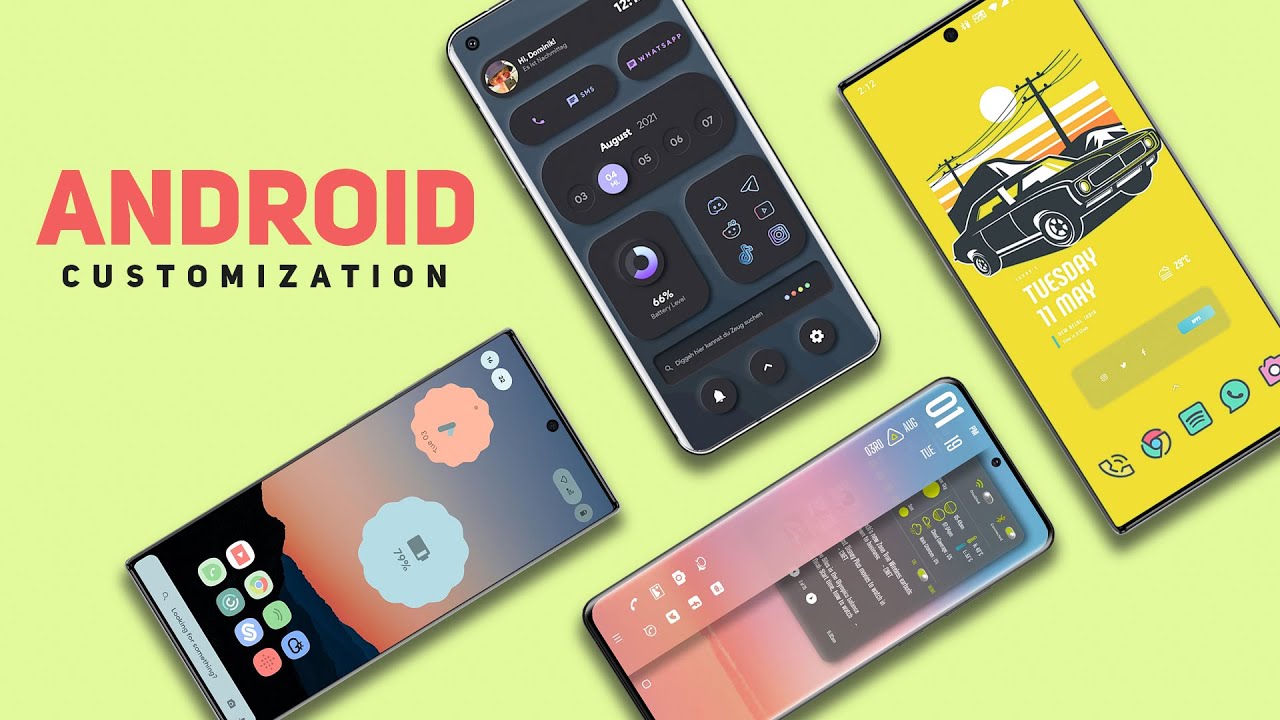
8. Hidden App Theme & UI Customization
Many Android phones support app-level UI customization beyond system themes.
Hidden Customization Includes:
- Per-app dark mode
- Font scaling for individual apps
- Icon shape and size
- App color accents (Material You)
📌 Available mostly on Android 12+ devices.
🎨 Make your apps look exactly how you want.
9. App Cloning & Dual Apps Feature
Some Android phones allow you to run two accounts of the same app.
Use Cases:
- Two WhatsApp accounts
- Separate work and personal apps
- Manage multiple social profiles
📌 Location:
Settings → Apps → Dual Apps / App Clone
🔁 Extremely useful for business users.
10. Hidden Accessibility Customizations for Apps
Accessibility settings offer powerful customization even for non-disabled users.
Features You Can Use:
- Custom gestures
- Button remapping
- Text scaling per app
- Audio balancing
📌 Path:
Settings → Accessibility → App Controls
🎯 Improves usability and comfort.
11. App Behavior Customization Using Digital Wellbeing
Android lets you control how much time you spend on apps.
Hidden Controls:
- App timers
- Focus mode restrictions
- Pause distracting apps
- Auto-disable notifications
📌 Find it:
Settings → Digital Wellbeing & Parental Controls
⏳ Great for productivity and mental health.
12. Hidden Security & Privacy Dashboard Controls
Newer Android versions provide deep insights into app behavior.
You Can:
- Track permission usage history
- See which app accessed camera or mic
- Disable clipboard access
- Block background sensors
📌 Path:
Settings → Privacy Dashboard
🔐 Protect your personal data easily.
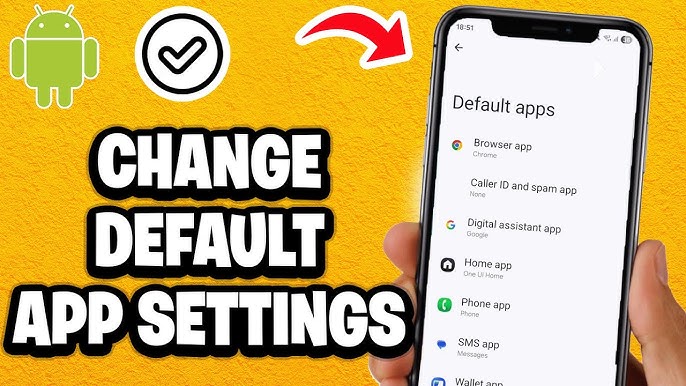
13. Customize Default App Behavior
Android allows users to change default apps for specific actions.
You Can Set Defaults For:
- Browsers
- SMS apps
- Calling apps
- File managers
- Assistant apps
📌 How:
Settings → Apps → Default Apps
🔄 Gain control over how your phone works.
14. Hidden Floating Window & Picture-in-Picture Controls
Some apps support floating windows and mini-screens.
Customize:
- Enable/disable Picture-in-Picture per app
- Resize floating windows
- Restrict overlay permissions
📌 Path:
Settings → Apps → Special App Access → Picture-in-Picture
🪟 Perfect for multitasking.
15. OEM-Specific Hidden App Features
Different brands offer extra customization layers:
Samsung:
- Good Lock modules
- Per-app sound control
- App power management
Xiaomi:
- App Lock
- Second Space
- Background restriction tools
OnePlus:
- App locker
- Zen Mode controls
- App-specific refresh rates
📱 Explore your brand’s exclusive settings.
Benefits of Using Hidden App Customization Options
By using these hidden features, you can:
- 🚀 Speed up your Android phone
- 🔋 Extend battery life
- 🔐 Improve privacy & security
- 🎨 Personalize your experience
- 📉 Reduce data usage
Final Thoughts
Android is much more powerful than it looks on the surface. Hidden app customization options allow you to fine-tune your phone exactly to your needs. Most users never explore these settings, but now you know where to find them and how to use them.
If you want better performance, longer battery life, and full control over your apps, start exploring these hidden Android features today.
🔔 Keep Visiting APKW8.org
For more Android tips, app guides, hidden features, APK insights, and tech tutorials, bookmark apkw8.org and stay updated with the latest Android tricks.