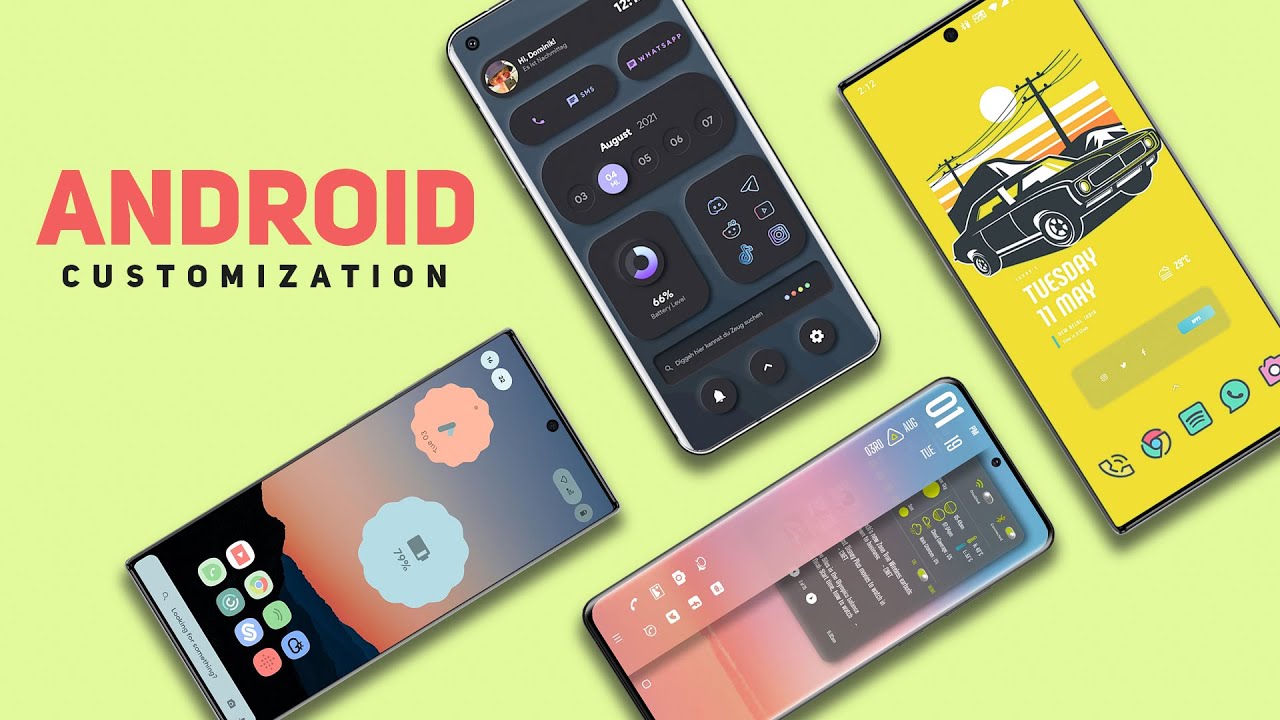

Smartphones are no longer just calling devices—they are powerful mini-computers. But most users never unlock their full potential because they don’t explore advanced app settings and customization options. If you’re a power user or want to become one, this guide is for you.
In this ultimate guide, we’ll cover 2000 App Settings & Customization Tips for Power Users, focusing on Android apps, system-level tweaks, privacy controls, performance optimization, automation, and personalization. These tips will help you boost speed, save battery, protect privacy, and customize apps like a pro.
What Are App Settings & Why Power Users Care
App settings control how applications behave, look, and interact with your device. Power users take advantage of these settings to:
- Improve app performance
- Reduce battery drain
- Increase privacy & security
- Customize UI & workflows
- Automate repetitive tasks
Most apps hide powerful features deep inside settings—features that only advanced users discover.
1. Essential App Settings Every Power User Should Change
Enable Advanced Permissions Control
Instead of allowing all permissions:
- Allow location only while using the app
- Disable microphone & camera access for unused apps
- Revoke background location access
This improves privacy and battery life.
Disable Unnecessary Background Activity
Many apps run silently in the background.
- Turn off background data for non-essential apps
- Disable auto-start permissions
- Restrict background refresh
2. App Customization Tips for Better User Experience
Customize App Themes & Dark Mode
- Enable system-wide dark mode
- Force dark mode on unsupported apps
- Choose AMOLED-friendly themes to save battery
Adjust Font Size & App Layout
Power users prefer efficiency:
- Reduce font size for more on-screen content
- Enable compact view or dense layout
- Adjust icon size and spacing
3. Advanced Notification Customization
Notifications can be powerful—or annoying.
Use Notification Channels
- Disable promotional alerts
- Keep only important notifications
- Set silent notifications for background alerts
Priority Notifications
- Assign high priority to work apps
- Enable heads-up notifications only for critical alerts
- Schedule Do Not Disturb automatically
4. Performance Optimization Through App Settings
Clear Cache Regularly
- Clear app cache (not data) to free storage
- Especially useful for browsers & social media apps
Lite Versions of Apps
- Use Facebook Lite, Messenger Lite, YouTube Lite
- Less RAM usage and faster performance
5. Battery Saving App Settings for Power Users
Restrict Battery Usage Per App
- Set battery optimization to restricted
- Disable background sync for social apps
- Limit GPS usage
Adaptive Battery & App Standby
- Enable adaptive battery
- Put rarely used apps into deep sleep
6. Privacy & Security Customization Tips
App Lock & Hidden Settings
- Use app lock for banking & private apps
- Hide sensitive apps from app drawer
Disable App Trackers
- Turn off ad personalization
- Reset advertising ID
- Use private DNS for extra protection
7. Developer Options for Advanced Customization
Developer options unlock hidden power features.
Animation Speed Control
- Reduce animation scale to 0.5x
- Faster UI and smoother experience
Force GPU Rendering
- Improves graphics performance in some apps
- Helpful for gaming and heavy apps
8. Automation Settings for Power Users
Use Automation Apps
Apps like Tasker or MacroDroid allow:
- Auto-enable Wi-Fi at home
- Auto-silent mode during meetings
- Auto-launch apps based on location
Scheduled App Actions
- Schedule app sync times
- Auto clear cache at night
- Turn off data for specific apps
9. Custom Launchers & App Control
Replace Default Launcher
Custom launchers offer:
- Gesture controls
- Icon packs
- App hiding
- Advanced app shortcuts
App Drawer Customization
- Group apps into categories
- Hide system apps
- Sort apps by usage frequency
10. Power User Tips for Popular App Categories
Social Media Apps
- Disable auto-play videos
- Reduce image quality
- Turn off read receipts
Browsers
- Enable ad blocking
- Use private DNS
- Disable third-party cookies
Gaming Apps
- Enable performance mode
- Lock FPS
- Disable background notifications
11. Storage & Data Management Settings
Control App Downloads
- Disable auto-download on mobile data
- Set download quality limits
- Choose storage location manually
Analyze Storage Usage
- Identify apps consuming large space
- Remove unused app data
- Use built-in storage cleaners
12. Accessibility Settings That Power Users Love
Accessibility isn’t just for special needs—it’s powerful.
- One-handed mode
- Floating buttons
- Gesture navigation
- Custom shortcuts
These features boost productivity for advanced users.
13. Cloud Sync & Backup Customization
Selective App Sync
- Sync only important app data
- Disable auto backup for large apps
- Choose Wi-Fi only backups
App Restore Control
- Prevent automatic restore of unused apps
- Restore only essential apps after reset
14. Hidden App Features You Should Explore
Many apps hide advanced options like:
- Experimental features
- Beta settings
- Debug menus
- Advanced search filters
Always explore the Advanced or Labs section in app settings.
Why Power Users Customize App Settings
Power users don’t just use apps—they control them. By mastering app settings, you gain:
- Faster phone performance
- Better battery life
- Improved privacy
- Personalized experience
- Professional-level control
Final Thoughts
These 2000 App Settings & Customization Tips for Power Users are not about installing more apps—but about using existing apps smarter. Whether you’re optimizing battery life, improving privacy, or customizing your workflow, app settings are the real power tools.
If you want to use your Android device like a pro, start exploring app settings today—you’ll be surprised how much control you already have.