
Android smartphones are powerful, flexible, and highly customizable, but most users never explore the settings that can dramatically improve performance, privacy, battery life, and overall experience. Whether you’re using a budget device or a flagship phone, changing a few Android settings can make your phone faster, safer, and more enjoyable to use.
In this article, we’ll cover the best Android settings you should change today to get the most out of your device.
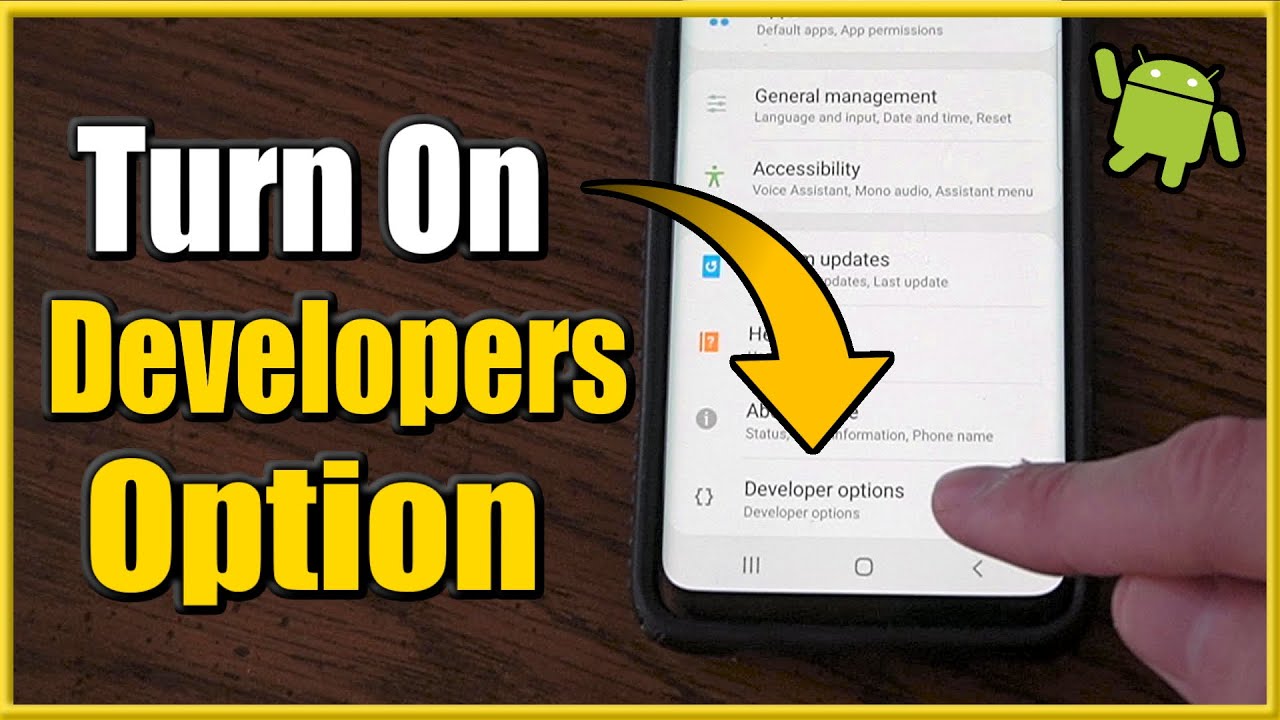
1. Enable Developer Options for Advanced Control
Developer Options are hidden by default, but they unlock powerful features.
How to enable Developer Options:
- Go to Settings
- Tap About Phone
- Tap Build Number 7 times
- Enter your PIN if asked
Must-change settings inside Developer Options:
- Animation scale (Window, Transition, Animator): Set all to 0.5x or turn them Off for a faster, smoother phone.
- Force Dark Mode: Enables dark mode in apps that don’t support it.
- Background process limit: Helps reduce RAM usage (use carefully).
This simple tweak alone can make your Android phone feel noticeably faster.
2. Turn On Dark Mode to Save Battery
Dark Mode isn’t just easier on the eyes—it can also save battery, especially on AMOLED displays.
How to enable Dark Mode:
- Go to Settings > Display > Dark Theme
- Turn it On
Benefits:
- Reduces eye strain
- Saves battery on OLED screens
- Looks modern and clean
For even better results, enable Schedule Dark Mode so it turns on automatically at night.
3. Disable or Limit Background App Activity
Many apps run in the background even when you’re not using them, draining battery and data.
How to control background activity:
- Go to Settings > Apps
- Select an app
- Tap Battery
- Choose Restricted or Optimized
Apps like social media, shopping apps, and games don’t need constant background access. Limiting them can significantly improve battery life.
4. Change Default App Permissions for Better Privacy
Android gives apps many permissions by default—but not all are necessary.
Important permissions to review:
- Location
- Microphone
- Camera
- Contacts
- Storage
How to manage permissions:
- Go to Settings > Privacy > Permission Manager
- Review apps using sensitive permissions
- Set access to “Allow only while using the app” or Deny
This protects your personal data and improves security.
5. Enable Find My Device for Security
If your phone is ever lost or stolen, Find My Device can save you.
How to enable it:
- Go to Settings > Security & Privacy
- Tap Find My Device
- Turn it On
With this setting enabled, you can:
- Locate your phone on a map
- Lock it remotely
- Erase data if necessary
This is one of the most important Android settings for security.
6. Turn Off Unnecessary Notifications
Constant notifications are distracting and drain battery.
How to manage notifications:
- Go to Settings > Notifications
- Review app notification access
- Disable notifications from non-essential apps
Pro tip:
- Turn off “Notification Dots” and “Pop-up Notifications” for a cleaner experience.
- Use Notification Categories to fine-tune alerts.
Your phone will feel calmer and more productive instantly.
7. Optimize Battery Usage with Adaptive Battery
Adaptive Battery uses AI to limit battery usage for apps you rarely use.
How to enable Adaptive Battery:
- Go to Settings > Battery
- Turn on Adaptive Battery
Benefits:
- Extends battery life
- Reduces background drain
- Learns your usage habits
Pair this with Battery Saver Mode for even better results on older devices.
8. Change Default DNS for Faster and Safer Browsing
Switching to a private DNS can improve speed and security.
How to change DNS:
- Go to Settings > Network & Internet
- Tap Private DNS
- Select Private DNS provider hostname
- Enter:
dns.googleor1dot1dot1dot1.cloudflare-dns.com
Benefits:
- Faster browsing
- Improved privacy
- Protection from malicious websites
9. Disable Bloatware and Unused Apps
Most Android phones come with pre-installed apps you never use.
How to remove or disable them:
- Go to Settings > Apps
- Select the app
- Tap Disable (or Uninstall if available)
Disabling bloatware:
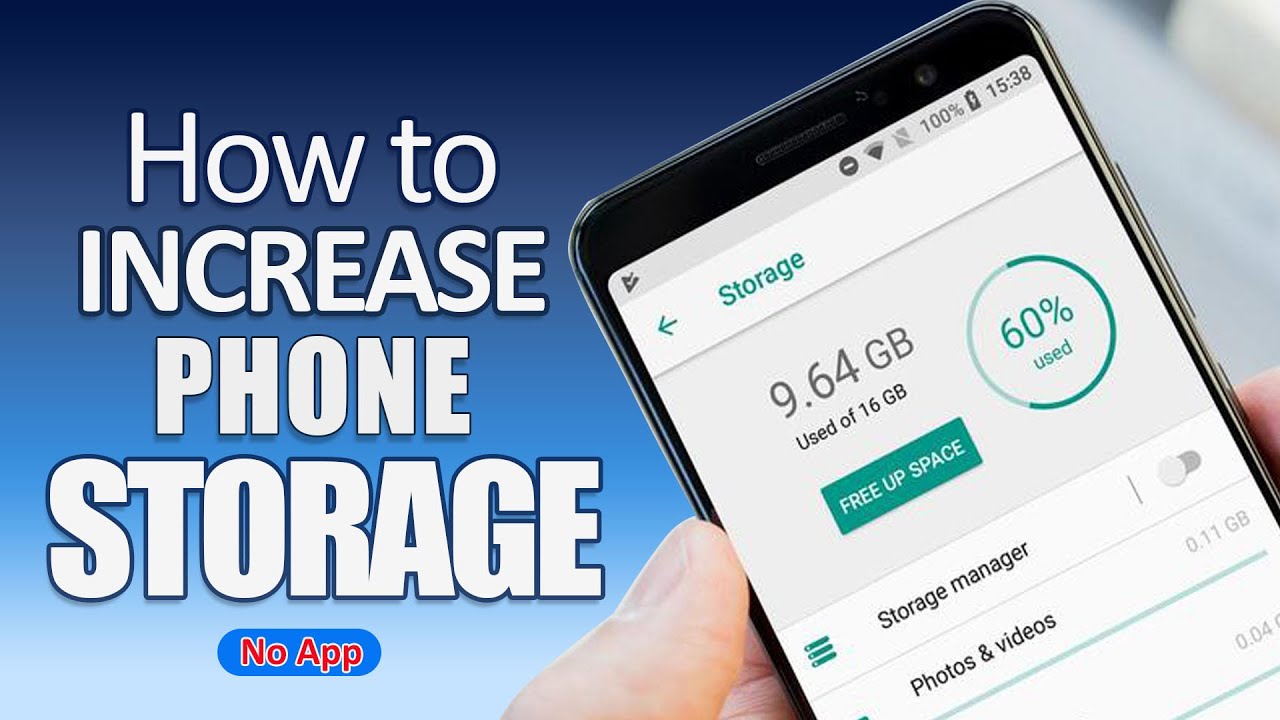
- Frees storage
- Improves performance
- Reduces background activity
This is especially important for low-storage devices.
10. Enable App Auto-Update Only on Wi-Fi
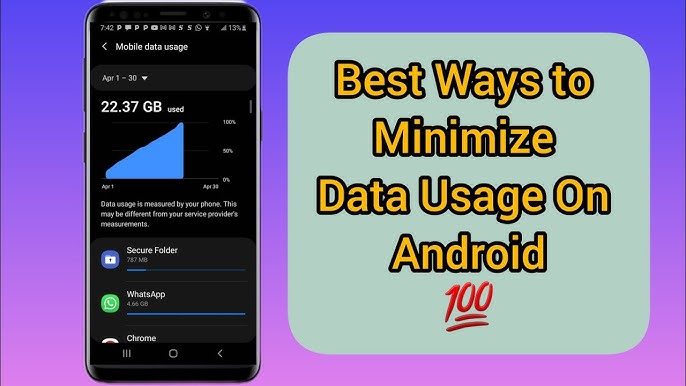
Auto-updating apps on mobile data can waste bandwidth.
How to change this setting:
- Open Google Play Store
- Tap your profile icon
- Go to Settings > Network Preferences
- Select Auto-update apps > Over Wi-Fi only
This helps save mobile data and prevents unexpected charges.
11. Customize Lock Screen for Convenience
Your lock screen can be more useful than you think.
Recommended lock screen changes:
- Enable Lock Screen Notifications
- Add Quick Access Shortcuts (Camera, Flashlight)
- Turn on Smart Lock for trusted locations or devices
These settings make your phone faster to access while staying secure.
Final Thoughts
Changing the right Android settings can completely transform your smartphone experience. From better battery life and faster performance to stronger privacy and security, these simple tweaks offer massive benefits without installing any extra apps.
If you want more Android tips, app reviews, and the latest APK updates, stay connected with apkw8.org—your trusted source for everything Android.
Start changing these Android settings today and unlock your phone’s true potential!