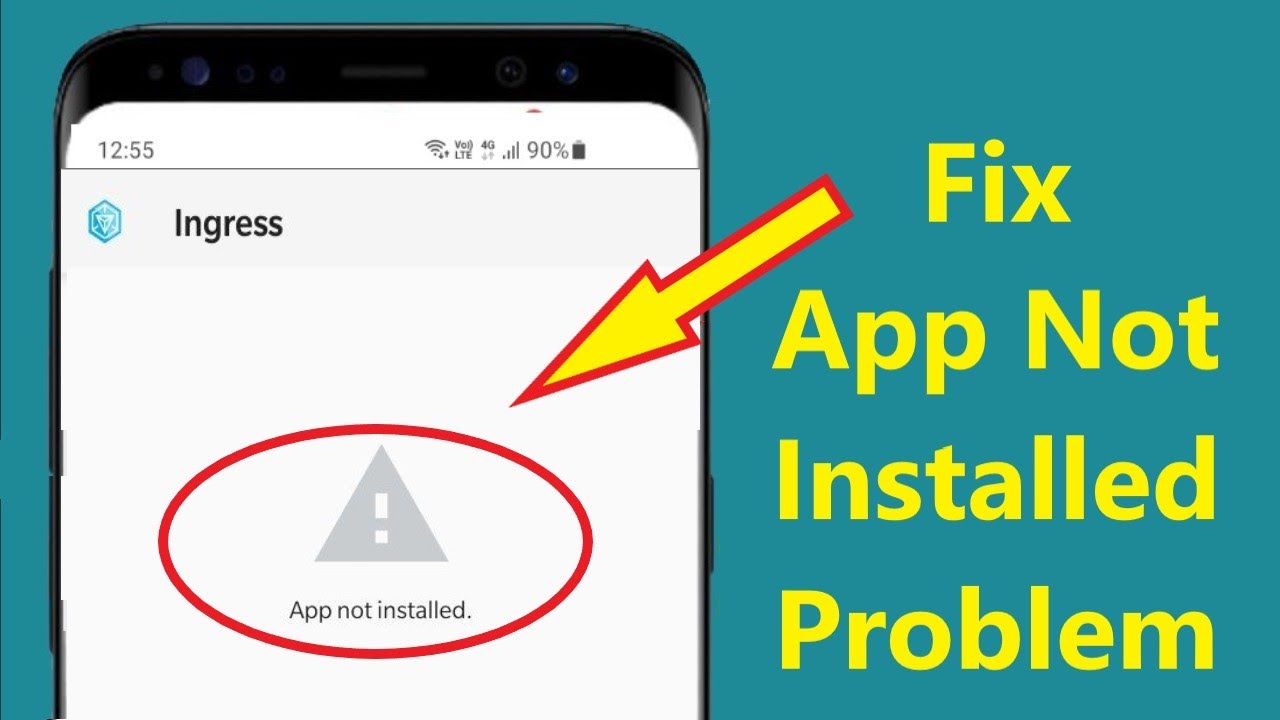

Android is one of the most popular operating systems in the world, powering millions of smartphones and tablets. While Android devices are powerful and flexible, users often face common errors that can affect performance, apps, or system stability. The good news is that most Android errors have simple fixes that anyone can apply without technical expertise.
In this article, we’ll explore the most common Android errors, why they happen, and easy solutions to fix them. Whether you’re a beginner or an advanced user, these tips will help keep your Android device running smoothly.
1. “App Has Stopped” Error
Cause:
This is one of the most common Android errors. It usually occurs due to corrupted app cache, outdated apps, or compatibility issues with the Android version.
Simple Fix:
- Go to Settings > Apps
- Select the problematic app
- Tap Storage
- Clear Cache and Data
- Restart your phone
If the problem continues, update the app or reinstall it from a trusted source like apkw8.org.
2. Google Play Store Not Working
Cause:
Play Store errors often happen due to sync issues, outdated Google Play Services, or corrupted cache files.
Simple Fix:
- Open Settings > Apps
- Select Google Play Store
- Clear cache and data
- Do the same for Google Play Services
- Restart your device
Make sure your Google account is properly synced.
3. Phone Running Slow
Cause:
Over time, unused apps, background processes, and storage overload can slow down your Android phone.
Simple Fix:
- Delete unused apps
- Clear cached files
- Restart your phone regularly
- Disable unnecessary background apps
- Keep at least 20% free storage
Using optimized APK versions from trusted sites like apkw8.org can also improve performance.
4. Battery Draining Too Fast
Cause:
High screen brightness, background apps, outdated software, or faulty apps can drain battery quickly.
Simple Fix:
- Reduce screen brightness
- Turn off GPS, Bluetooth, and Wi-Fi when not in use
- Enable Battery Saver Mode
- Check battery usage in Settings > Battery
- Update your apps and system
5. Storage Space Full Error
Cause:
Photos, videos, app cache, and large files can fill up storage faster than expected.
Simple Fix:
- Delete unnecessary photos and videos
- Clear app cache
- Use cloud storage
- Move files to SD card if supported
- Remove unused apps
Lightweight APK versions available on apkw8.org are a great alternative to heavy apps.
6. Wi-Fi Connection Problems
Cause:
Incorrect network settings, outdated firmware, or router issues can cause Wi-Fi errors.
Simple Fix:
- Turn Wi-Fi off and on
- Restart your router
- Forget the network and reconnect
- Reset network settings:
- Settings > System > Reset > Network Reset
7. Android System UI Has Stopped
Cause:
This error often occurs due to software bugs, corrupted cache, or incompatible apps.
Simple Fix:
- Restart your phone
- Clear cache partition (via recovery mode)
- Uninstall recently installed apps
- Update Android system if available
8. Apps Not Downloading or Updating
Cause:
This issue may occur due to low storage, network problems, or Play Store errors.
Simple Fix:
- Check internet connection
- Clear Play Store cache
- Ensure enough storage space
- Restart your phone
If Play Store issues persist, downloading apps from apkw8.org can be a reliable alternative.
9. Phone Overheating
Cause:
Heavy gaming, prolonged usage, background apps, or charging while using the phone can cause overheating.
Simple Fix:
- Close unused apps
- Avoid direct sunlight
- Remove phone case temporarily
- Don’t use the phone while charging
- Update apps and system software
10. Bluetooth Not Connecting
Cause:
Pairing issues, outdated software, or device conflicts can affect Bluetooth connections.
Simple Fix:
- Turn Bluetooth off and on
- Restart both devices
- Forget and re-pair the device
- Reset network settings if needed
11. Android Stuck on Boot Loop
Cause:
This serious error can occur after failed updates, corrupted files, or incompatible apps.
Simple Fix:
- Boot into Recovery Mode
- Wipe cache partition
- If necessary, perform a factory reset (backup data first)
Installing stable APKs from trusted sources like apkw8.org reduces this risk.
12. Notifications Not Showing
Cause:
Disabled notifications, battery optimization, or app restrictions may block notifications.
Simple Fix:
- Go to Settings > Notifications
- Enable notifications for the app
- Disable battery optimization for important apps
Tips to Avoid Android Errors
- Always keep apps updated
- Download apps from trusted platforms like apkw8.org
- Avoid installing unknown or modified APKs
- Restart your phone weekly
- Keep enough storage space available
- Backup important data regularly
Final Thoughts
Android errors are common, but they don’t have to be frustrating. Most issues can be resolved with simple fixes that take only a few minutes. Understanding the causes and solutions helps you maintain better performance, longer battery life, and a smoother user experience.
For safe, updated, and optimized APK files, visit apkw8.org — your trusted source for Android apps and games. By using reliable apps and following the tips above, you can enjoy a trouble-free Android experience.