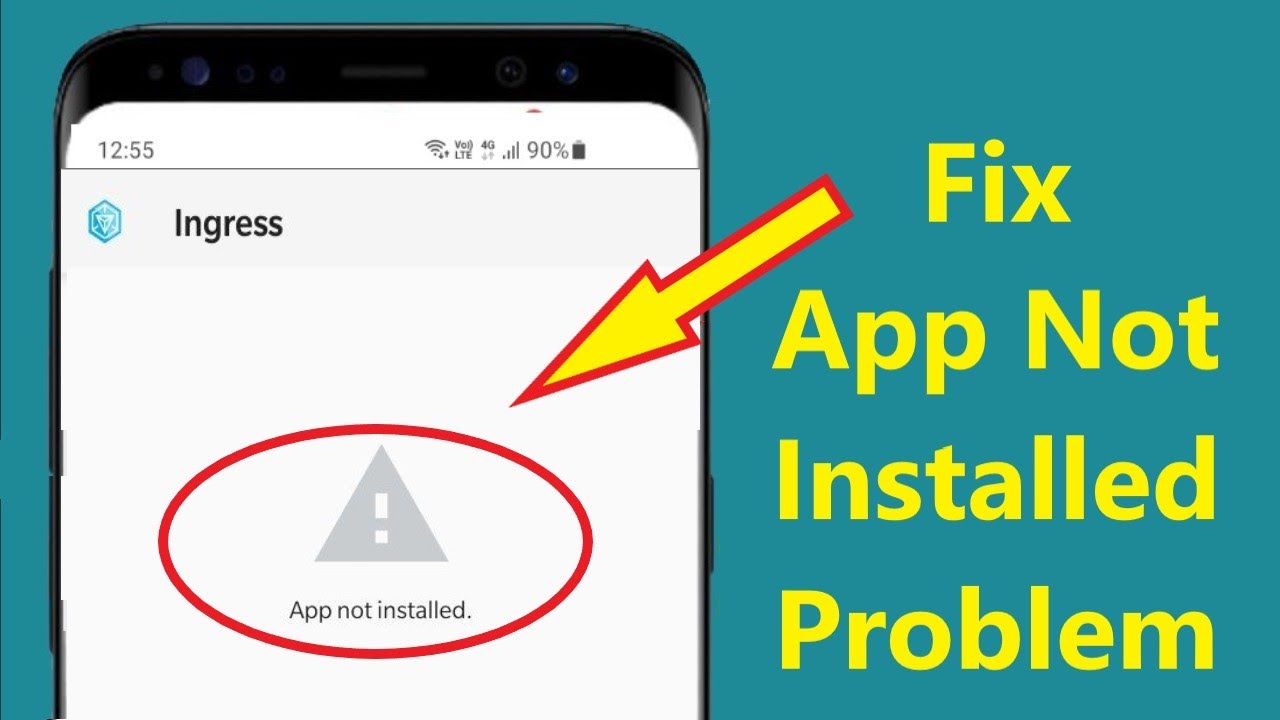

The “App Not Installed” error on Android is one of the most common and frustrating issues users face when trying to install APK files or apps outside the Google Play Store. This error usually appears without a clear explanation, leaving users confused about what went wrong.
If you frequently download apps or games from trusted third-party sources like apkw8.org, understanding why this error occurs and how to fix it is essential. In this guide, we’ll explain the main causes of the “App Not Installed” error and provide step-by-step solutions to fix it quickly.
What Does “App Not Installed” Mean?
When Android shows the message “App Not Installed”, it means the system has blocked the installation process. This can happen due to compatibility issues, storage problems, permission restrictions, corrupted APK files, or conflicts with existing apps.
The good news is that in most cases, the error can be fixed easily without advanced technical knowledge.
Common Causes of “App Not Installed” Error on Android
Before jumping into solutions, it’s important to understand why the error occurs.
1. Incompatible Android Version
If an app requires a newer or older Android version than the one installed on your device, Android will refuse to install it.
2. Insufficient Storage Space
Even if the app file is small, Android needs extra space to unpack and install it.
3. Corrupted or Incomplete APK File
If the APK download was interrupted or corrupted, installation will fail.
4. Conflicting App Signatures
Trying to install a modified APK over an official Play Store version can cause signature conflicts.
5. Unknown Sources Not Enabled
Android blocks installations from third-party sources by default.
6. Google Play Protect Blocking Installation
Play Protect may detect false positives and prevent installation.
How to Fix “App Not Installed” Error on Android
Follow these solutions one by one until the issue is resolved.
1. Check Android Version Compatibility
Before installing any APK, make sure your Android version supports it.
How to check your Android version:
- Go to Settings
- Tap About Phone
- Check Android Version
Compare it with the app requirements listed on apkw8.org. If your device is outdated, consider updating your Android OS or downloading a compatible version of the app.
2. Free Up Storage Space
Lack of storage is one of the most common reasons for installation failure.
Steps to free storage:
- Delete unused apps
- Clear cached data
- Remove old photos or videos
- Move files to cloud storage or SD card
After freeing at least 500MB–1GB of space, try installing the app again.
3. Enable “Install Unknown Apps”
If you’re installing apps from outside the Play Store, this setting must be enabled.
Steps (Android 8.0 and above):
- Go to Settings
- Tap Security & Privacy
- Select Install Unknown Apps
- Choose your browser or file manager
- Enable Allow from this source
Now retry the installation.
4. Download the APK Again from a Trusted Source
A corrupted APK file can cause the “App Not Installed” error.
Solution:
- Delete the existing APK file
- Re-download it from a reliable source like apkw8.org
- Ensure the download completes fully
Avoid downloading APKs from unknown or suspicious websites.
5. Uninstall the Existing Version of the App
If the app is already installed (especially from Google Play), installing a modified or older version may fail.
Fix:
- Go to Settings > Apps
- Find the app
- Tap Uninstall
- Restart your phone
- Install the APK again
⚠️ Note: Back up important app data before uninstalling.
6. Clear Package Installer Cache
Sometimes the Android Package Installer itself causes issues.
Steps:
- Go to Settings
- Tap Apps
- Select Show System Apps
- Find Package Installer or Package Manager
- Tap Storage
- Clear Cache and Data
Restart your device and try again.
7. Disable Google Play Protect Temporarily
Google Play Protect may block APK installations even when the app is safe.
Steps:
- Open Google Play Store
- Tap your profile icon
- Select Play Protect
- Tap Settings
- Turn off Scan apps with Play Protect
Install the app, then re-enable Play Protect for security.
8. Check App Permissions
Some apps fail to install due to restricted permissions.
Fix:
- Make sure your file manager has permission to install apps
- Enable Storage, Files, and Media permissions
9. Use Split APK Installer (For Modern Apps)
Some apps use split APKs (APKM, XAPK) instead of a single APK file.
Solution:
- Install a split APK installer like SAI
- Use it to install the app properly
apkw8.org often provides guidance on whether an app requires split installation.
How to Prevent “App Not Installed” Error in the Future
To avoid this issue in the future:
- Always download apps from trusted sources
- Keep your Android OS updated
- Maintain enough storage space
- Avoid installing multiple versions of the same app
- Read app requirements before downloading
Final Thoughts
The “App Not Installed” error on Android can be annoying, but it’s rarely permanent. By understanding the cause and following the solutions above, you can fix the issue quickly and safely.
If you frequently download premium apps, mod APKs, or games, apkw8.org is a reliable platform that offers verified files, compatibility information, and user-friendly guides to help you install apps without errors.
📱 Bookmark apkw8.org for safe APK downloads and expert Android troubleshooting tips.