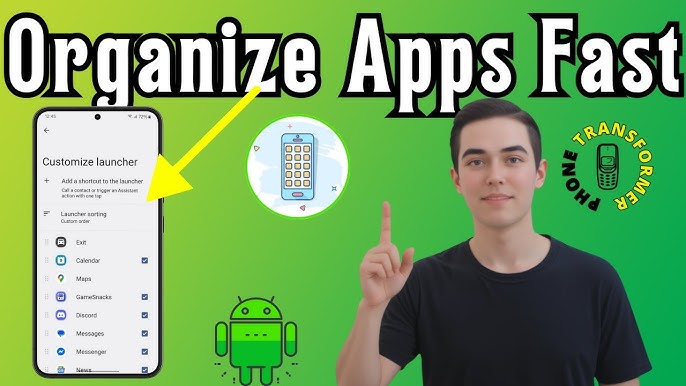

Keeping your Android phone organized is more important than ever. With dozens of apps installed for work, social media, gaming, shopping, and entertainment, a cluttered home screen can slow you down and cause frustration. If you are wondering how to organize apps on Android phone easily, this complete guide will help you manage your apps like a pro.
Whether you use Samsung, Xiaomi, Oppo, Vivo, Realme, or any other Android device, these tips work on almost all Android phones.
Why Organizing Apps on Android Is Important
Before we jump into the steps, let’s understand why app organization matters:
- 📱 Faster access to important apps
- 🔋 Better performance and less distraction
- 🧠 Reduced stress and cleaner interface
- ⏱️ Saves time when multitasking
An organized phone improves productivity and makes daily usage smoother.
1. Use App Folders on Home Screen
The easiest way to organize apps on Android is by using folders.
How to Create App Folders:
- Long-press any app icon on the home screen
- Drag it on top of another app
- A folder will be created automatically
- Rename the folder (e.g., Social, Games, Tools)
Folder Name Ideas:
- Social Media
- Games
- Finance & Banking
- Editing Apps
- Productivity
- Shopping
This method works on almost every Android launcher.
2. Organize Apps Using App Drawer
Most Android phones come with an App Drawer, where all apps are stored.
Tips to Organize App Drawer:
- Sort apps alphabetically
- Use custom tabs (available on some phones)
- Hide unused apps
How to Sort Apps Alphabetically:
- Open App Drawer
- Tap three dots (⋮)
- Select “Sort by Name”
This makes finding apps much easier, especially if you have many installed apps.
3. Hide Unused or System Apps
Many Android phones come with pre-installed apps you don’t use.
How to Hide Apps:
- Open App Drawer
- Tap three dots (⋮)
- Select “Hide Apps”
- Choose apps you want to hide
Hidden apps won’t appear on the home screen or app drawer, keeping things clean.
4. Use Third-Party Launchers for Better Organization
If you want advanced customization, try Android launchers.
Best Launchers for App Organization:
- Nova Launcher
- Microsoft Launcher
- Smart Launcher
- Niagara Launcher
Benefits of Using Launchers:
- Custom app folders
- Gesture controls
- Hide apps easily
- App categorization
Launchers are lightweight and safe when downloaded from the Google Play Store.
5. Organize Apps by Usage Frequency
Another smart way to organize apps is by how often you use them.
Suggested Layout:
- Home Screen: Daily use apps (WhatsApp, Phone, Camera)
- Second Screen: Work & productivity apps
- Third Screen: Entertainment & games
Place the most used apps near your thumb for faster access.
6. Use Widgets to Reduce App Clutter
Widgets help you access app features without opening the app.
Useful Widgets:
- Clock & Weather
- Calendar
- Music Player
- Notes
Using widgets reduces the need for multiple app icons on your home screen.
7. Group Apps by Color or Theme (Optional)
For users who like visual organization, grouping apps by color can look stylish.
Example:
- Blue apps in one folder
- Green apps in another
- Dark apps together
This is optional but gives a unique and aesthetic look.
8. Uninstall Apps You Don’t Need
Sometimes the best organization is removing unnecessary apps.
How to Uninstall Apps:
- Long-press the app
- Tap “Uninstall”
- Confirm
Regularly cleaning unused apps frees storage and improves phone speed.
9. Use Google Play Store App Management
Google Play Store also helps manage apps.
Steps:
- Open Play Store
- Tap profile icon
- Go to “Manage apps & device”
- Review installed apps
From here, you can update, uninstall, or review apps easily.
10. Enable Digital Wellbeing (Bonus Tip)
Digital Wellbeing helps track app usage and reduce distraction.
Features:
- App usage limits
- Focus mode
- Screen time tracking
This indirectly helps you decide which apps deserve a place on your home screen.
Common Mistakes to Avoid
❌ Too many apps on one screen
❌ No folders at all
❌ Keeping unused apps
❌ Using cluttered widgets
Avoid these to maintain a clean Android setup.
Final Thoughts
Learning how to organize apps on Android phone easily can completely change your smartphone experience. With folders, app drawers, launchers, widgets, and regular cleaning, you can keep your phone fast, clean, and stress-free.
You don’t need technical skills—just a few minutes and the right approach. Start organizing today and enjoy a smoother Android experience.
Related Articles on apkw8.org:
- Best Android Launchers for Customization
- How to Speed Up Android Phone Without Root
- Best App Management Tips for Android