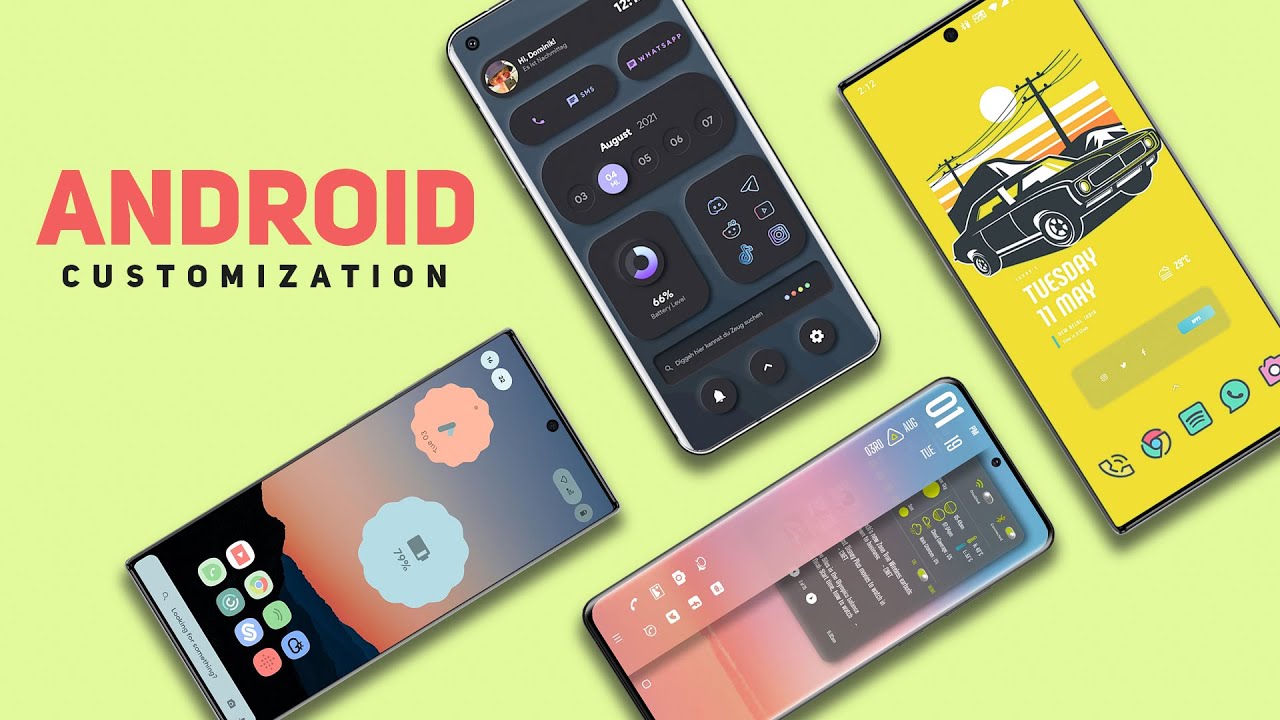

Android is famous for its flexibility, and one of its biggest strengths is app personalization. Unlike other mobile operating systems, Android allows users to customize apps in powerful ways—from simple layout tweaks to advanced automation. Whether you want better performance, a cleaner interface, or a more personal experience, learning how to personalize Android apps like a pro can completely change how you use your phone.
In this guide, we’ll explore easy and advanced methods to customize Android apps, improve usability, and make your device truly your own.
Why App Personalization Matters on Android
Personalizing Android apps isn’t just about looks. It helps you:
- Improve productivity and focus
- Reduce clutter and distractions
- Enhance performance and battery life
- Create a user interface that matches your style
- Get faster access to important features
With the right tools and settings, you can transform even basic apps into powerful, personalized tools.
1. Use Built-In App Settings First
Before installing third-party tools, start with the built-in app settings. Most Android apps already offer customization options such as:
- Theme (light, dark, or system default)
- Notification controls
- Font size and layout
- Privacy and permission settings
Pro Tip
Open Settings > Apps > Select App > App Settings to explore hidden options that many users overlook.
2. Customize Apps Using Android Launchers
Launchers are one of the most powerful ways to personalize Android apps.
Best Features of Android Launchers:
- Change app icons and names
- Customize app drawer layout
- Add gestures and shortcuts
- Hide apps for privacy
Popular Android Launchers:
- Nova Launcher
- Lawnchair Launcher
- Microsoft Launcher
Using a launcher allows you to redesign how apps appear and behave without rooting your device.
3. Change App Icons and Themes
If you want a professional and stylish look, customizing app icons is essential.
How to Personalize App Icons:
- Install icon packs from the Play Store
- Apply them using your launcher
- Mix and match icons for a unique setup
Many apps also support Material You, which adapts app colors to your wallpaper automatically on newer Android versions.
4. Use Widgets for Smart App Customization
Widgets turn apps into interactive tools directly on your home screen.
Benefits of Widgets:
- Quick access to app features
- Real-time information without opening apps
- Better multitasking
You can resize, stack, and customize widgets to create a dashboard-style home screen that looks and works like a pro setup.
5. Personalize Notifications Like a Pro
Notifications can be useful—or annoying. Android allows deep notification customization per app.
Advanced Notification Customization:
- Enable or disable specific notification categories
- Change notification sounds
- Set silent notifications
- Use notification bubbles for messaging apps
Go to Settings > Notifications > App Notifications to fine-tune how each app communicates with you.
6. Automate App Behavior with Smart Tools
Professional Android users rely on automation to save time.
Best Automation Apps:
- Tasker
- MacroDroid
- Automate
You can automate actions like:
- Changing app settings based on location
- Launching apps at specific times
- Enabling dark mode at night
- Adjusting volume for specific apps
Automation turns regular apps into smart tools that work for you.
7. Customize App Permissions for Privacy and Control
Personalization also means control over your data.
Key Permission Settings to Adjust:
- Allow location access only while using the app
- Disable background activity
- Restrict camera and microphone access
- Turn off unnecessary internet access
Managing permissions improves security, battery life, and overall performance.
8. Use Mod Apps Carefully (Advanced Users)
Some users personalize apps using mod APKs for extra features or unlocked options. While these can offer more control, they also come with risks.
Important Safety Tips:
- Download only from trusted sources
- Avoid apps asking for unnecessary permissions
- Use antivirus protection
- Understand local laws and policies
If you use mod apps, do so responsibly and always prioritize security.
9. Improve App Performance Through Personalization
Personalization can also boost app performance.
Performance Optimization Tips:
- Disable unused features inside apps
- Turn off background sync
- Clear app cache regularly
- Enable lite modes when available
Many popular apps offer “data saver” or “lite” settings that improve speed and reduce battery usage.
10. Backup and Sync Your Personalized Setup
After creating the perfect setup, don’t forget to back it up.
What to Backup:
- Launcher layout
- App settings
- Automation rules
- Widgets and shortcuts
Most launchers and Android systems offer cloud backup options, making it easy to restore your personalized setup anytime.
Final Thoughts
Learning how to personalize Android apps like a pro unlocks the true power of your smartphone. From launchers and widgets to automation and privacy controls, Android offers endless customization possibilities for beginners and advanced users alike.
With the tips shared in this guide, you can create a faster, smarter, and more personal Android experience—one that truly fits your lifestyle.
For more Android tips, app guides, APK insights, and tech tutorials, keep visiting apkw8.org and stay ahead in the Android world