
In today’s digital world, mobile internet has become a daily necessity. From social media and streaming videos to online gaming and app downloads, mobile data is consumed faster than ever. However, high data usage can quickly drain your data plan, slow down your internet speed, and increase your monthly expenses. Learning how to reduce data usage on mobile devices is essential for saving money and improving performance.
In this guide by apkw8.org, we’ll explore practical, effective, and easy-to-follow methods to minimize mobile data consumption on both Android and iOS devices.
Why Is Mobile Data Usage So High?
Mobile data usage increases due to several reasons, including background apps, auto-play videos, cloud backups, app updates, and high-quality streaming. Many users are unaware that apps continue to use data even when not actively opened.
Understanding these causes is the first step toward controlling your mobile data usage.
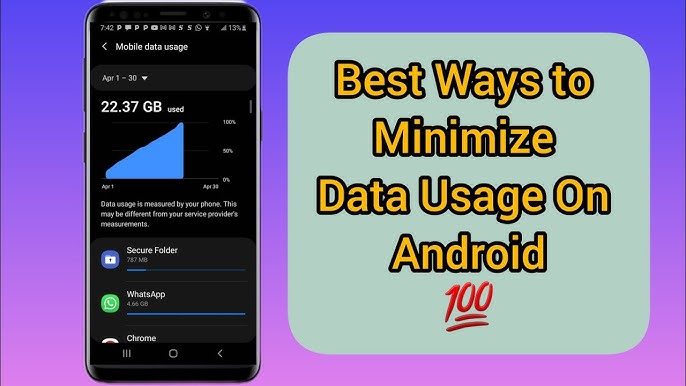
1. Monitor Your Mobile Data Usage
The most effective way to reduce data usage is to track it regularly.
On Android:
- Go to Settings > Network & Internet > Data Usage
- Check which apps consume the most data
On iPhone:
- Go to Settings > Mobile Data
- Scroll down to see app-wise data consumption
Once you identify data-hungry apps, you can limit or restrict their background usage.
2. Restrict Background Data for Apps
Many apps run in the background and consume data without your knowledge.
How to restrict background data:
- Android:
Go to Settings > Apps > Select App > Mobile Data > Disable Background Data - iOS:
Go to Settings > General > Background App Refresh and turn it off for unnecessary apps
This simple step can significantly reduce overall mobile data usage.
3. Use Data Saver Mode
Most smartphones come with a built-in Data Saver mode.
Benefits of Data Saver Mode:
- Limits background data
- Reduces image quality
- Prevents auto-syncing
How to enable:
- Android: Settings > Network & Internet > Data Saver
- iPhone: Enable Low Data Mode from Settings > Mobile Data > Data Mode
This feature is especially helpful if you have a limited data plan.
4. Turn Off Auto-Play Videos
Auto-play videos are one of the biggest data consumers, especially on social media platforms like Facebook, Instagram, TikTok, and YouTube.
Recommended settings:
- Disable video auto-play in app settings
- Set videos to play only on Wi-Fi
- Lower video streaming quality
Reducing video data usage can save a massive amount of mobile data every month.
5. Download Content Over Wi-Fi
Instead of streaming content repeatedly, download it when connected to Wi-Fi.
What you can download:
- YouTube videos
- Netflix and other streaming content
- Podcasts and music playlists
- Offline maps
Using Wi-Fi for downloads helps reduce mobile data usage and provides a smoother offline experience.
6. Update Apps Only on Wi-Fi
App updates can be large and consume a lot of data.
How to control updates:
- Google Play Store:
Go to Settings > Network Preferences > App Download Preference > Over Wi-Fi Only - App Store (iOS):
Go to Settings > App Store > Turn off Mobile Data
This ensures updates don’t eat up your mobile data unexpectedly.
7. Use Lightweight Apps or Lite Versions
Many popular apps offer Lite versions that consume less data and storage.
Examples:
- Facebook Lite
- Messenger Lite
- Twitter Lite
- YouTube Lite (via browser)
Lite apps are ideal for users with limited data plans and slower networks.
8. Disable Cloud Sync on Mobile Data
Cloud services like Google Drive, iCloud, and Dropbox constantly sync files, photos, and videos.
Best practice:
- Allow cloud backups only on Wi-Fi
- Disable auto photo and video uploads on mobile data
This prevents large files from being uploaded or downloaded using your data plan.
9. Use a Data Compression Browser
Web browsers with built-in data compression can reduce data usage by up to 50%.
Recommended browsers:
- Google Chrome (Lite Mode)
- Opera Mini
- UC Browser
These browsers compress web pages before loading them on your device, saving data without affecting readability.
10. Set a Data Limit Alert
Setting a mobile data limit helps you stay within your plan.
How it helps:
- Sends alerts when nearing data limit
- Automatically disables data once limit is reached
- Prevents extra charges
This feature is available on most Android devices and through carrier apps on iOS.
11. Avoid Streaming in High Quality
Streaming in HD or 4K consumes significantly more data.
Data-saving tips:
- Set video quality to standard or low
- Avoid live streaming on mobile data
- Stream music at lower bitrates
Lower quality streaming still offers a good experience while saving data.
Final Thoughts
Reducing mobile data usage doesn’t mean sacrificing your online experience. With the right settings, habits, and apps, you can save data, money, and battery life. By monitoring usage, limiting background activity, using Wi-Fi wisely, and optimizing app settings, you’ll gain full control over your mobile data consumption.
For more helpful guides, APK resources, and mobile optimization tips, visit apkw8.org—your trusted source for smarter mobile solutions.