
Android apps have become an essential part of our daily lives. From communication and entertainment to education and productivity, Android applications help users perform tasks easily using their smartphones. However, if you are a beginner, learning how to use Android apps properly can feel confusing at first. This step-by-step guide is designed to help beginners understand how Android apps work and how to use them confidently.
What Are Android Apps?
Android apps are software applications designed to run on Android devices such as smartphones and tablets. These apps allow users to perform specific tasks like chatting with friends, watching videos, managing finances, editing photos, or playing games. Android apps are available in different categories, making it easy for users to find apps that suit their needs.
What You Need Before Using Android Apps
Before you start using Android apps, make sure you have the following:
- An Android smartphone or tablet
- A stable internet connection (Wi-Fi or mobile data)
- Enough storage space on your device
- A Google account (for app downloads and updates)
Once these basic requirements are ready, you can start exploring Android apps without any difficulty.
Step 1: Unlock Your Android Device
To begin, press the power button on your phone to wake the screen. Unlock your device using a PIN, password, pattern, fingerprint, or face recognition. After unlocking, you will see the home screen, which is the main area where apps and widgets are displayed.
Step 2: Find the App You Want to Use
There are two common ways to find an app on your Android device:
Using the Home Screen
Many frequently used apps appear directly on the home screen. You can tap the app icon to open it.
Using the App Drawer
Swipe up or tap the app drawer icon to see a full list of installed apps. Scroll through the list or use the search bar to find the app you want.
Step 3: Open an Android App
Once you find the app icon, tap on it once. The app will open and load its main interface. Some apps may take a few seconds to load, especially if they require an internet connection or updates.
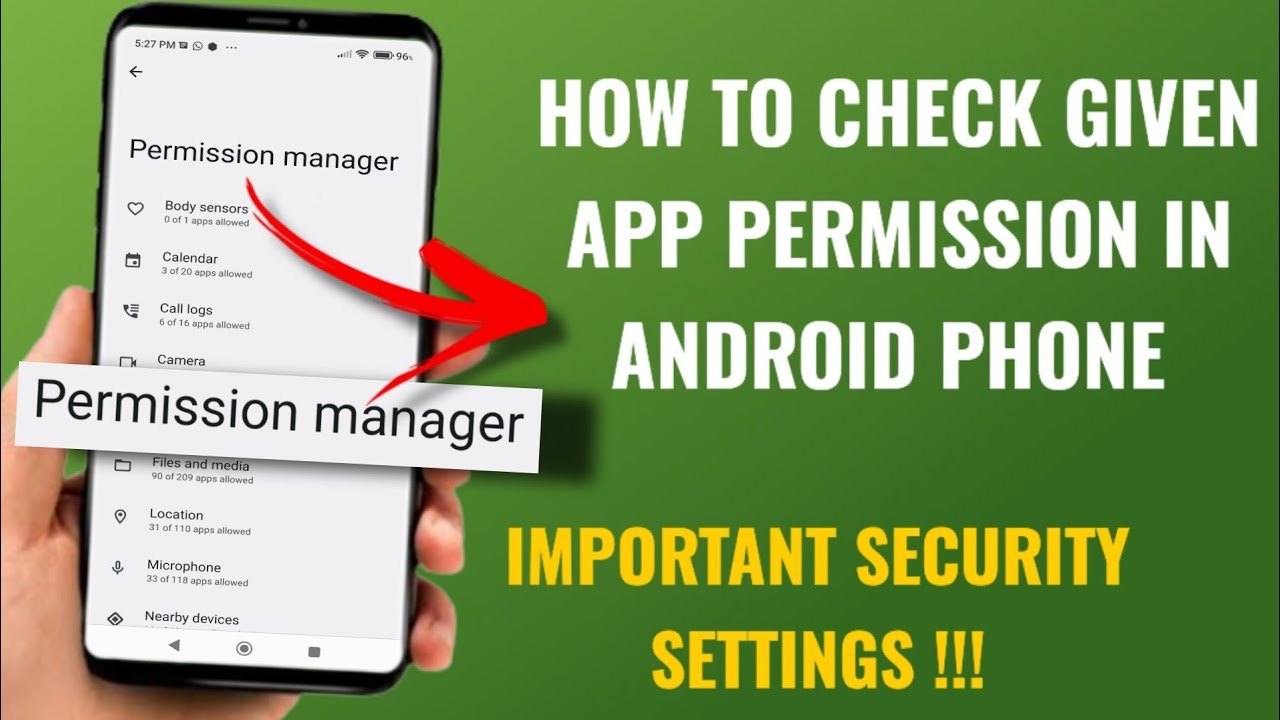
Step 4: Allow App Permissions
When you open an app for the first time, it may ask for permissions such as access to your camera, microphone, contacts, or storage. These permissions help the app function correctly.
Tips for Beginners:
- Read the permission request carefully
- Allow only the permissions that are necessary
- You can change permissions later from the phone settings
Step 5: Understand the App Interface
Every Android app has a user interface that includes buttons, menus, and icons. Common elements include:
- Home screen: The main screen of the app
- Menu: Often shown as three lines or dots
- Back button: Helps you return to the previous screen
- Settings: Allows you to customize app options
Spend a few minutes exploring the app interface to understand how it works.
Step 6: Create an Account or Sign In (If Required)
Some apps require you to create an account or log in before using all features. Follow the on-screen instructions to sign up using your email, phone number, or social account.
Beginner Tip:
Use a strong password and remember your login details for future access.
Step 7: Use App Features Step by Step
Start using the app by selecting one feature at a time. Avoid trying everything at once. For example:
- In a messaging app, start by sending one message
- In a photo app, try editing a single image
- In a video app, watch one video and explore controls
This gradual approach helps beginners feel comfortable and confident.
Step 8: Close or Exit an App Properly
To exit an app, you can:
- Press the back button until the app closes
- Use the recent apps button and swipe the app away
Closing unused apps helps save battery life and improves device performance.
Step 9: Update Android Apps Regularly
App updates bring new features, bug fixes, and security improvements. Keeping apps updated ensures smooth performance.
How Updates Help:
- Better speed and stability
- Improved security
- New tools and features
Regular updates are recommended for all Android users.
Step 10: Manage Installed Apps
As you install more apps, managing them becomes important.
Useful App Management Tips:
- Uninstall apps you no longer use
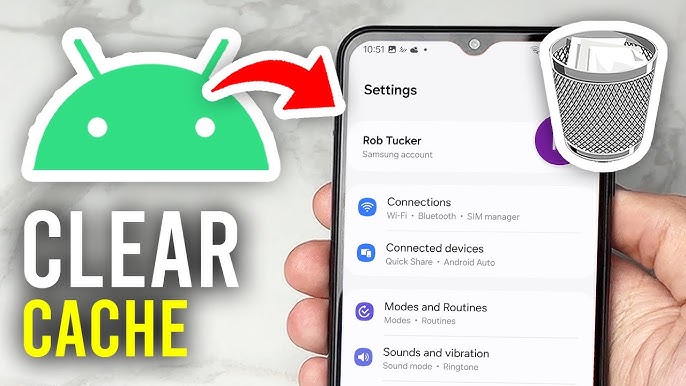
- Clear app cache if an app becomes slow
- Check storage usage regularly
- Disable unnecessary notifications
These steps help keep your Android device fast and organized.
Common Problems Beginners Face and Their Solutions
App Not Opening
Restart your device or update the app.
App Crashing
Clear cache or reinstall the app.
App Using Too Much Battery
Restrict background usage from settings.
Storage Full
Delete unused apps or media files.
Understanding these basic solutions can save time and frustration.
Safety Tips for Using Android Apps
For a secure experience, beginners should follow these safety practices:
- Download apps only from trusted sources
- Avoid apps asking for unnecessary permissions
- Keep your Android system updated
- Do not share personal information unnecessarily
These steps help protect your data and privacy.
Final Thoughts
Learning how to use Android apps step by step is easy when you understand the basics. With a little practice, beginners can quickly become confident users. Android apps are designed to be user-friendly, and exploring them gradually helps unlock their full potential. Whether you are using apps for communication, learning, entertainment, or productivity, following this guide will help you use Android apps safely and efficiently.
Stay curious, keep exploring, and enjoy the power of Android apps in your daily life.